


The Weagree Wizard’s CRM – the ‘party database’ – stores all details of persons and entities directly associated with your own organisation as well as any counterparty or other third party which is in some way related to your contracts. Various more advanced entity management functionalities are available (for more information, click here), but for contract templates, being able to manage basic party information such as name, address and registration number is what matters most.
TABLE OF CONTENTS
A. The party database
B. Contract parties
C. Using CRM tags
D. Party tags
A. THE PARTY DATABASE
In templates, data from the party database can be dynamically retrieved using CRM (party) tags. Previously entered information is automatically filled in once the user selects a party during the questionnaire. If the party does not exist yet, the user will be able to enter all required (and optional) details for future use. In special cases, it is possible to only store party data within a single contract entry.
The party database is divided into two sections, one for your ‘own’ parties and one for ‘other’ parties. This distinction is important not just for practical management reasons, but also because of how they are used in the Weagree Wizard. For example, on the Draft or negotiate and My signed contracts pages, this binary division is used to determine which person or entity must appear in the Other party column.
Outside of the questionnaire, the party database can be accessed either via the Entity management (‘own’ parties) and Other parties (CRM) buttons on Draft or negotiate and My signed contracts, or via the subtabs with the same names on the Search page. Custom party fields can be added as needed; for more information, click here.
B. CONTRACT PARTIES
Insofar as possible, a template should be preconfigured to allow for certain parties, fulfilling certain roles. For example, for a Distribution agreement you will typically want a ‘Supplier’ and a ‘Distributor’; for a Sales agreement, you will typically want a ‘Seller’ and a ‘Buyer’. These will be assigned a party number and , which is used when retrieving information from the party database once the user has selected a party during the questionnaire.
It is also a good idea to preconfigure which party details a user should enter when adding a new party to the database.
How to configure these settings is explained in detail here.
C. USING CRM TAGS
Each party field in the party database can be used to insert information into a template. This accomplished with CRM tags, which take the format [WeagreeCRM.Party number.Data type.Field name]. For example, to get the complete name of party 1 to the contract, you would use “[WeagreeCRM.1.Relation.Name]”. For the title (position) of party 2’s signatory, you would use “[WeagreeCRM.2.Signatory.Title]” (for more information on signatories, click here).
CRM tags can be generated for you and inserted where you want them with the Template Creation Tool (TCT). Tags which have not been provided for in the template settings (e.g. if you have only predefined two types of parties, but insert tags referencing a party 3) will nevertheless produce additional party pickers and enable entering additional party details in the questionnaire.
Note: your clause library will most likely contain standard party and signatory global building blocks. If you do not want to use them, they can at least provide you with good examples of which CRM tags to use and how.
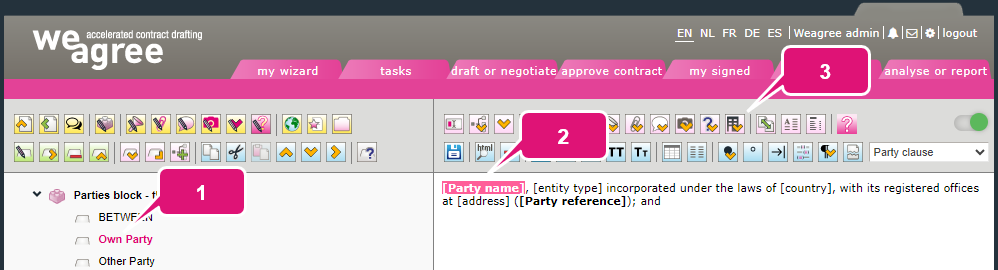
1. Locate the (global) building block or contract clause, or definition where the CRM data must be inserted.
2. Select the text that must be replaced by the CRM data (or position the cursor where it must be inserted).
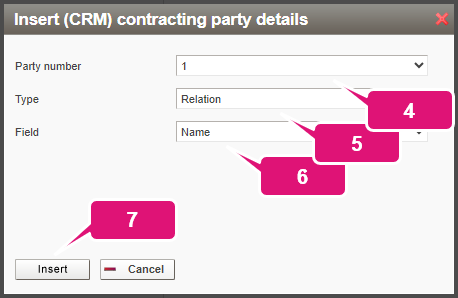
3. Click Insert (CRM) contracting party details.
4. Select the applicable party number.
5. Select the applicable data type.
6. Select the applicable party field.
7. Click Insert.
8. Click Save the changes made (or press Ctrl+S).
D. PARTY TAGS
In addition to CRM tags, you can also use party tags for the retrieval of CRM data – specifically, the shortened names of parties. This will depend on the house style settings, however: the tag will be replaced in the questionnaire’s WYSIWYG view (‘underwater screen’) and generated document by either the shortened name or the functional reference (e.g. ‘Seller’ or ‘Buyer’). For more information, click here.
Party tags take the format [gq.Party[number]] (e.g. “[gq.Party1]” for the party with number 1). These must always be manually typed out. It is generally recommended that you replace all references to the parties’ shortened names or functional references in the model contract with these tags before you start importing or manually inserting a template (see also these instructions). However, if you have not done so, you can use the TCT’s search and replace functionality to remedy this after template insertion.
Moreover: you can use party tags elsewhere, such as a question field or the name of an answer option. This has the effect of making the questionnaire more dynamic and precise.
