In the Weagree Wizard, definitions are stored outside a template in a dedicated definitions library. This enables the use of standardised definitions across multiple templates, much like global building blocks and global contract clauses from the clause library. Furthermore, the Weagree Wizard makes it possible to dynamically assemble a contract’s list of definitions. Only those defined terms that are actually used (‘tagged’) in the final, generated document will appear on that list. Because definitions are created and maintained via the Template Creation Tool (TCT), they can consist of multiple contract clauses and incorporate any number of questions for maximum versatility.
TABLE OF CONTENTS
A. Organising definitions
B. Inserting a definition into your template
C. Checking your template’s definitions
D. Creating the list of definitions
A. ORGANISING DEFINITIONS
Definitions can be added, edited or deleted from the definitions library.
1. Open the TCT.
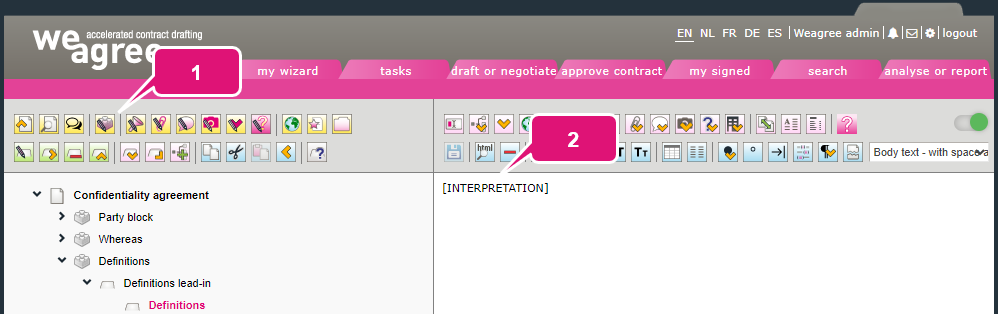
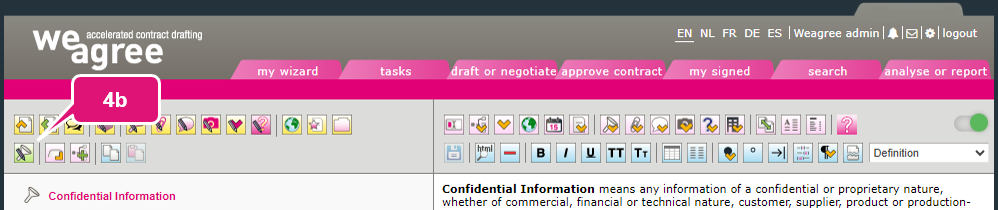
2. Click Organise defined terms and definitions. A pop-up will appear.

3. To create a new definition:
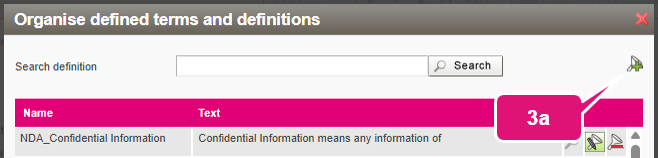
a. Click Add a definition. Another pop-up will appear.
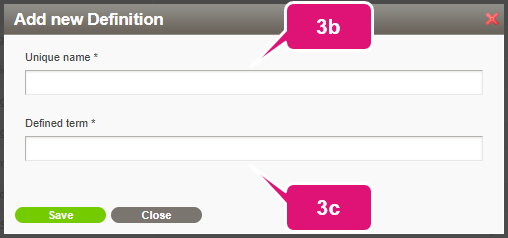
b. Insert a unique name. This is the name used to identify the definition in the library and tags used in templates.
Note: it is advisable to add a clear prefix to the name if the definition is specific to the template. This is not only the case when the same term would be defined differently in another type of document, but also when the definition contains a cross-reference to a building block or contract clause in the template (global building blocks and global contract clauses excepted). An acronym of the document title will typically suffice (e.g. NDA for a Non-disclosure agreement, so the full unique name for a defined term Confidential Information would be “NDA_Confidential Information”).
c. Insert the defined term. This is the text that will appear wherever the applicable definition tag is used in a template.
d. Click Save.
The new definition will be opened in the TCT, where you can edit it like you would a building block or contract clause. Definitions have their own ‘outline’ on the left side of the TCT and the top component should always have the Definition styling. The styles Definition subitem and Definition sub-subitem are available for numbered lists in definitions. You may also use Level 2 – no numbering for additional paragraphs to a definition. Do not forget to click Save the changes made (or press Ctrl+S) when you are done.
Note: definitions can also be created and filled with content during automated import. For more information, click here.
4. To edit an existing definition:
a. Click Edit definition.
b. Click Edit the definition name to change its unique name or defined term.
c. Edit the body text as needed.
d. Click Save the changes made (or press Ctrl+S).
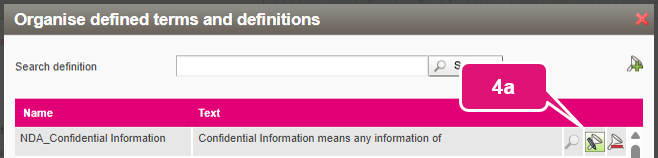
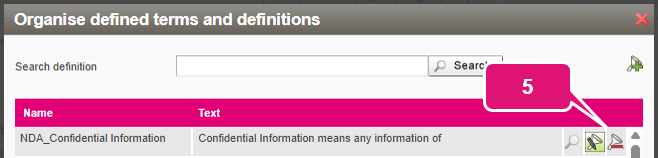
5. To delete a definition, click Remove.
Note: be careful when editing or deleting any definition that might be used in multiple templates, as this will affect all of them. Changing the unique name means you will have to correct every instance of the definition being tagged. Do this using the search and replace functionality.
B. INSERTING A DEFINITION INTO YOUR TEMPLATE
Definitions work like any other tag, in that the Weagree Wizard replaces them with something else when going through a questionnaire or generating a document. Specifically, the definition tag is replaced by the defined term.
Moreover, the tag ‘triggers’ inclusion of the definition in the document’s dynamically generated list of definitions. A single tag will suffice for this; you do not have to replace each instance of a defined term being used in a model contract with the applicable definition tag.
Note: if a defined term is always used in a contract, regardless of the user’s answers to the questionnaire, be sure to tag the definition in a building block or contract clause that will always appear in the final document. If the defined term is only used in certain cases, you might have to tag it multiple times (e.g. when it only appears in two answer options of the same choice question).
WARNING: avoid inserting definition tags into other definitions. While possible, there is a risk of creating a loop: definitions referring back and forth to each other. This will cause the Weagree Wizard application to crash. Always check whether the target definition contains any definition tags itself.
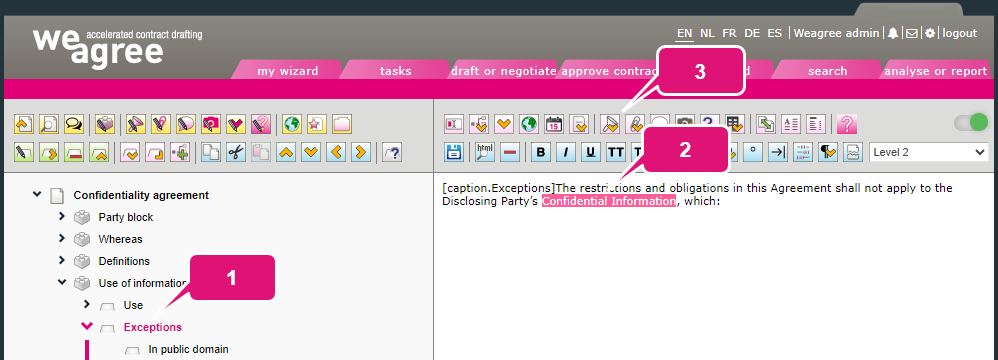
1. Locate the intended (global) building block or contract clause.
2. Select the defined term as used in the text (or position the cursor where it must be inserted).
3. Click Insert a defined term. A pop-up will appear.
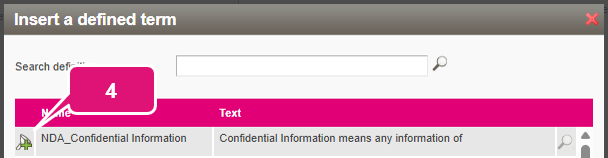
4. Select the corresponding definition.
Note: it is also possible to manually type out the tag. It takes the format [definition.Unique name] (e.g. “[definition.NDA_Confidential Information]”).
5. Click Save the changes made (or press Ctrl+S).
C. CHECKING YOUR TEMPLATE’S DEFINITIONS
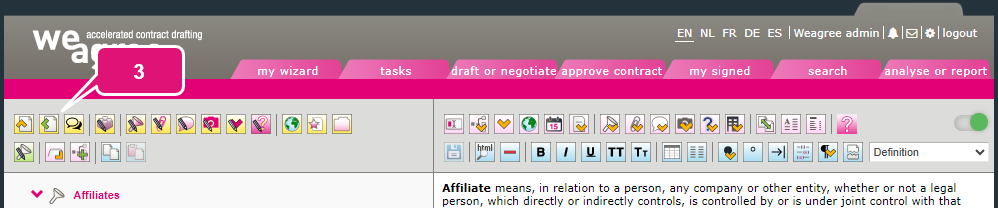
All definition tags triggered by the template are listed in the TCT below the template outline (which is collapsed in the screenshot below). Check whether all defined terms are present when finalising or updating a template. You can also use this to edit a definition:
1. Select the applicable defined term.
2. Click Focus on this definition and confirm that you want to edit it.
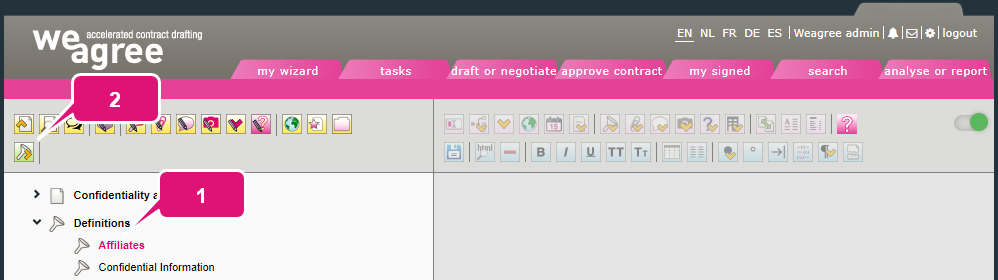
3. After completing and saving your changes, click Return to the template (view) to go back to the template outline.
D. CREATING THE LIST OF DEFINITIONS
The list of definitions as it will appear in the WYSIWYG view (‘underwater screen’) of the questionnaire and the generated document is composed of all the actually used definition tags. Definitions that are tagged in the template, but appear in clauses or phrases that are excluded because of the user’s answers to the questionnaire, will be omitted. This ensures the list is always accurate. The list is also automatically ordered alphabetically; the order in which definition tags appear throughout the template does not matter.
There are two options:
1. The easiest, most common one is to insert a premade global building block or global contract clause from your clause library. Search your clause library for “definition” or “interpretation”. For more information on use of the clause library, click here.
2. Alternatively, create a contract clause and insert the tag [INTERPRETATION] into the body text on the right. This tag will produce the full list of used definitions.
Both methods can also be used to make the list appear in a schedule or annex.
Note: the alphabetical order may occasionally be disrupted in the case of defined terms consisting of multiple words. If so, for a definition that should be lower on the list, try replacing the first (and in rare cases, second) space in its body text with a non-breaking space (the [º] tag).