


The template outline (structure), shown on the left side of the Template Creation Tool (TCT), consists of building blocks and contract clauses. These components contain the actual content of the template: both static and variable text. Inserting a template therefore begins with creating building blocks and contract clauses.
TABLE OF CONTENTS
A. Introduction
B. Building blocks
C. Contract clauses
D. Clause library
A. INTRODUCTION
Building blocks and contract clauses are hierarchical components of the template outline. At the top, or root, is the bold-printed template name (note that this may not be identical to the document title).
Directly below that are the building blocks, which usually correspond to article, section or clause headings. These are listed below one another at the same hierarchical level. Each building block may encompass any number of contract clauses, but not another building block. A contract clause may itself encompass any number of contract clauses as well. Different hierarchical levels are indicated by indentation.
For example, the below screenshot shows a building block (Obligations of Distributor) at what may be termed ‘level 1’, encompassing two clauses at ‘level 2’ (General and Specific responsibilities); and the Specific responsibilities clause encompasses six ‘level 3’ clauses, among which Sales – which itself encompasses another five clauses. A building block can also be referred to as the ‘parent’ of a ‘child’ contract clause, which in turn can be the parent of another contract clause. Components at the same level within the same hierarchy can be termed ‘siblings’.
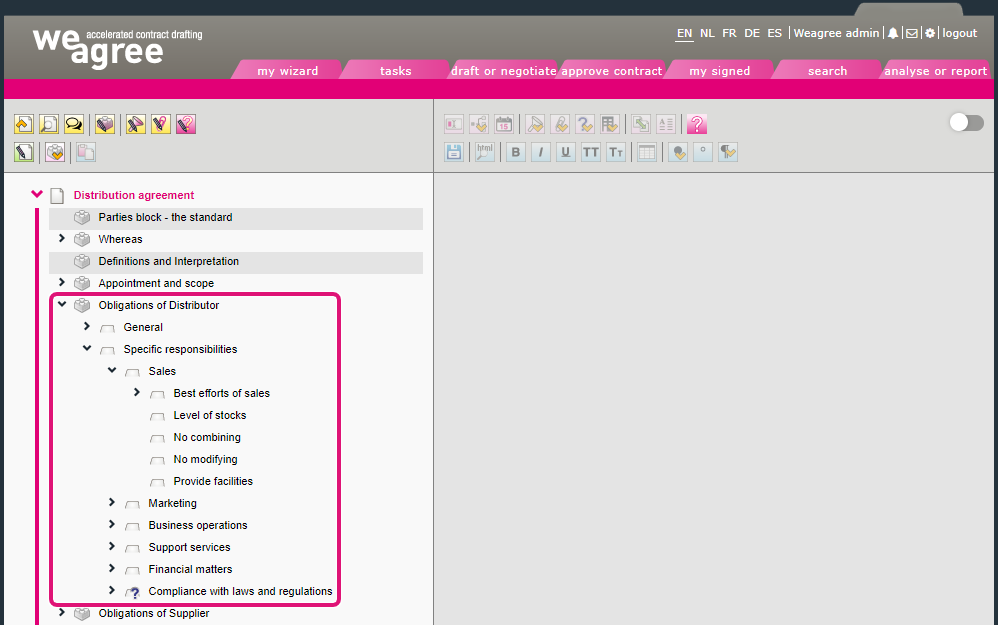
When setting up your template’s structure, it is important to understand a few things about how building blocks and contract clauses work:
1. What is called a ‘contract clause’ in the TCT will not necessarily actually constitute a contract clause. It can also represent a subparagraph or a single item in a list, or something else entirely. In essence, this also applies to building blocks. Any component can take any content.
2. A component’s position in the template outline does not dictate the appearance of its contents. Whether text is numbered or not, whether it is a heading or not, whether it has any indentation or not, etc., is not determined by its component (building block or contract clause) or by the component’s indentation. Instead, this is fully governed by the paragraph style selected for that component.
3. Building blocks always define the structure of the questionnaire. Pages in the questionnaire (Q&A) are tied to building blocks with questions. This includes their entire hierarchy, so if the actual building block does not contain any question, but any contract clause it encompasses does, this will produce a page in the Q&A. Each building block’s entire hierarchy can only ever produce one Q&A page.
As such, it is generally practical to set up your template structure to resemble a table of contents using building blocks, while ordering the contract clauses they encompass in whichever way most clearly communicates how they relate to each other.
B. BUILDING BLOCKS
The second row of the TCT’s left-hand toolbar includes all the buttons needed for creating and arranging building blocks.
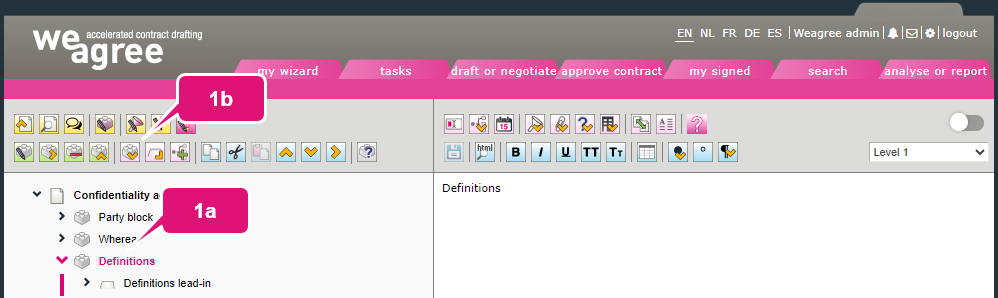
1. To insert a building block:
a. Select the building block beneath which the new one must appear (if there are no building blocks yet, the template name – top component – will be automatically selected).
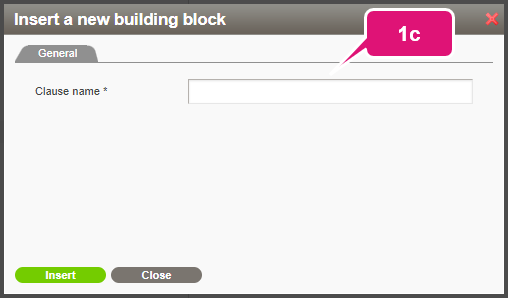
b. Click Insert a new building block. A pop-up will appear.
c. Insert a name (avoid including numbers).
d. Click Save.
Note 1: it is generally recommended that you create one building block for each discrete section of your contract (schedules and annexes excluded). Building blocks will usually contain a heading or lead-in, followed by contract clauses containing the body text of the relevant section.
Note 2: if the Show advanced vs. all basic functionalities switch in the top-right corner of the TCT is enabled, there will be two additional subtabs: Formatting deviations and Recurrence. You may ignore the first if you are just starting with template insertion and the second will only become relevant once you start working on the questionnaire. For more information on either, click here and here, respectively.
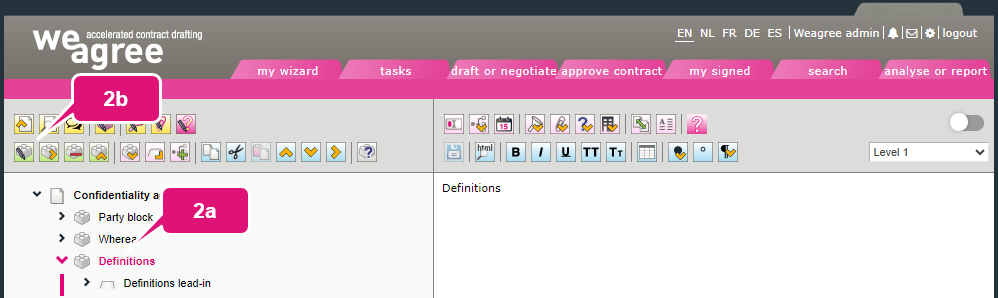
2. To change a building block’s name:
a. Select the building block.
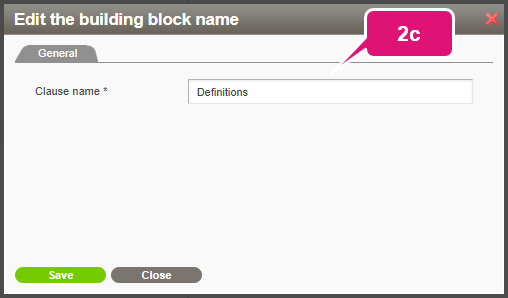
b. Click Edit the building block name. A pop-up will appear
c. Change the name and click Save.
3. To change a building block’s position in the order of building blocks:
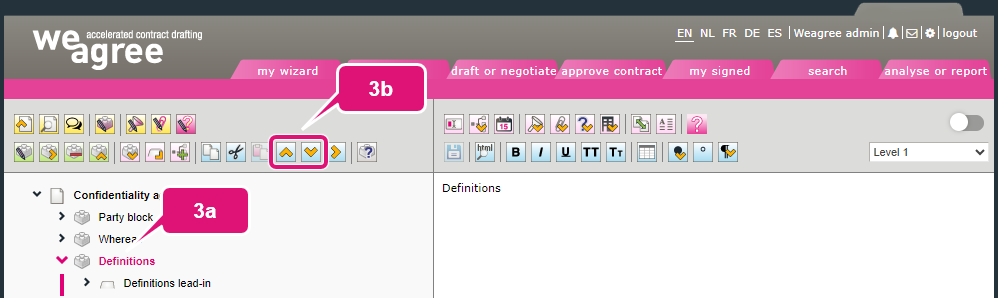
a. Select the building block.
b. Click Move the component upwards or Move the component downwards as many times as necessary.
4. To convert a building block into a contract clause:
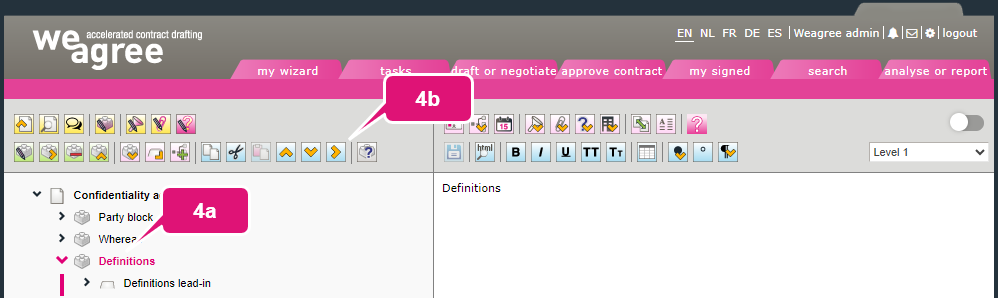
a. Select the building block.
b. Click Change indentation (place immediately underneath the preceding component).
Note 1: this is only possible when there is a building block above the currently selected building block. It will effectively transfer the selected building block and all contract clauses it encompasses to the above building block. All moved components will be indented one step more in the template outline’s hierarchy.
Note 2: alternatively, you can cut and paste the building block and everything it encompasses into any other building block. There is also a copy button for quickly reproducing single components or entire hierarchical structures within the template outline.
5. To delete a building block:
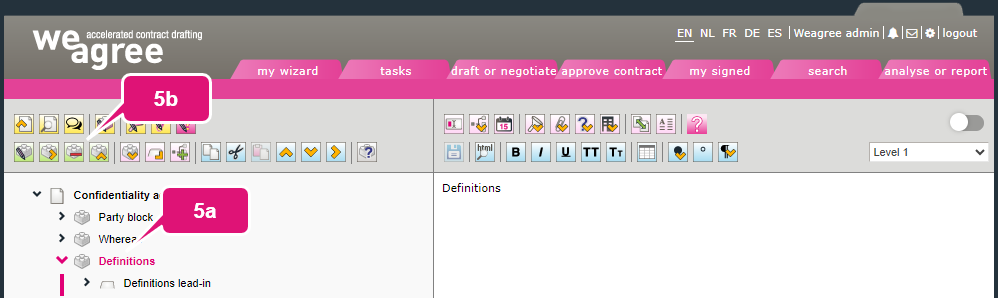
a. Select the building block.
b. Click Delete this building block (and everything underneath it). A browser alert will appear, asking for confirmation.
Note: be careful with such deletions, as they also delete all components the building block encompasses and cannot be undone.
C. CONTRACT CLAUSES
Creating and arranging contract clauses is virtually identical to creating and arranging building blocks. Almost all the required buttons have the same functions and are in the same place, albeit with slightly different icons and descriptions. There are only a few differences.
The most significant difference is that a contract clause can only exist beneath (hierarchically speaking) a building block or other contract clause. A contract clause cannot exist on the same template outline indentation level as a building block, nor can a contract clause encompass a building block. The other differences stem from this and are detailed below. Otherwise, you may follow the same instructions as for building blocks.
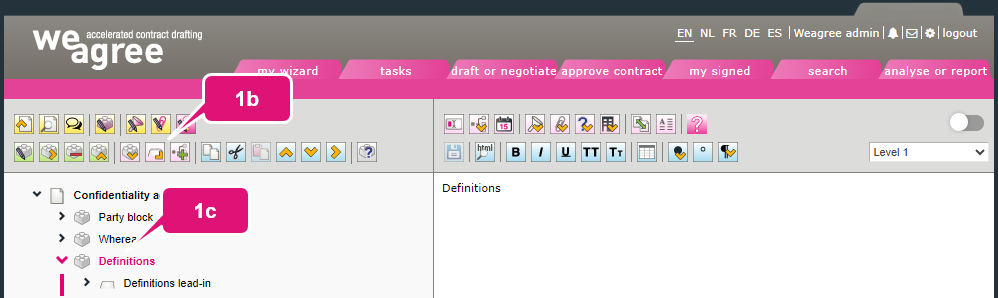
1. To insert a contract clause beneath a building block (parent):
a. Select the building block.
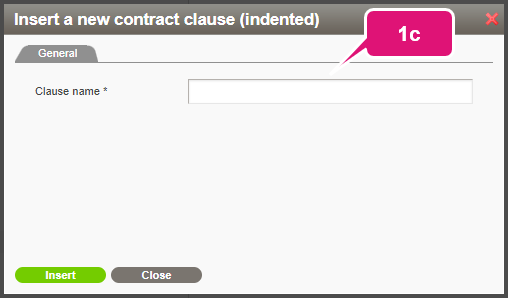
b. Click Insert a new contract clause (indented). A pop-up will appear.
c. Insert a name (again, avoid including numbers).
d. Click Save.
Note 1: it is generally recommended that you create one contract clause for each paragraph in the model contract.
Note 2: if any contract clauses were previously added to the building block, the new one will appear below the last one.
2. To insert a contract clause beneath another contract clause:
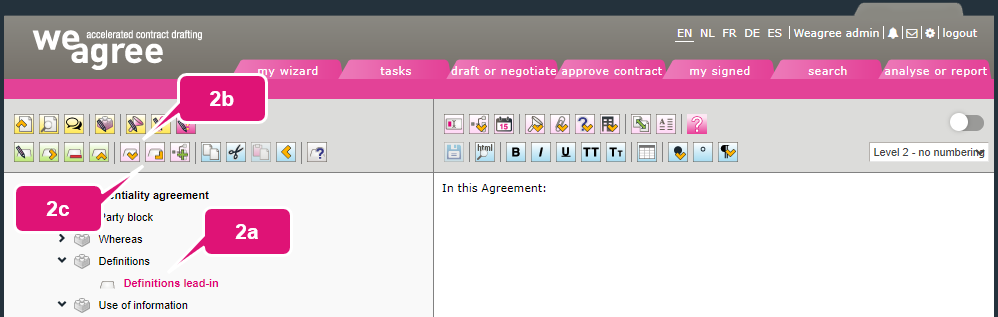
a. Select the contract clause.
b. If the new contract clause must be a sibling, appearing on the same hierarchical level (e.g. when you’re adding Clause 1.2 below Clause 1.1), click Insert a new contract clause (below, same indentation).
c. If the new contract clause must be a child, appearing on the next hierarchical level (e.g. when you’re adding a subparagraph (a) to Clause 1.1, or adding a Clause 1.1.1), click Insert a new contract clause (indented).
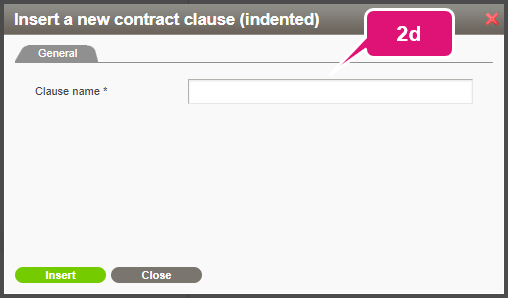
d. In either case, a pop-up appears. Insert a name.
e. Click Save.
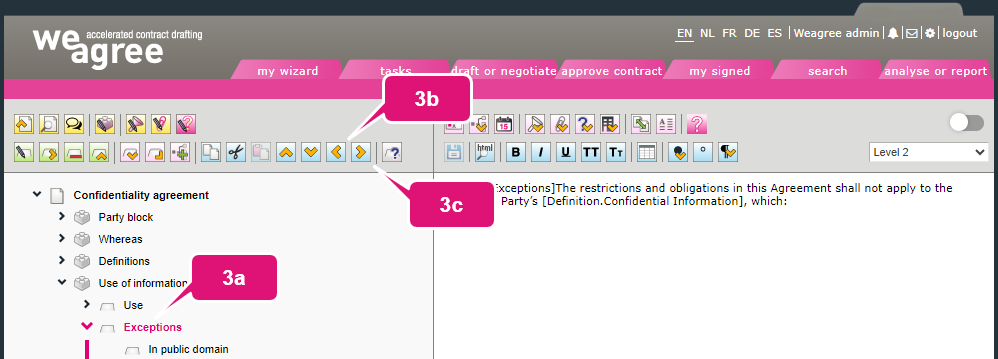
3. To change the indentation (hierarchical level) of a contract clause:
a. Select the contract clause.
b. If you want to reduce its indentation (move it one level up), click Change indentation (move to the left, underneath the parent component).
c. If you want to increase its indentation (move it one level down), click Change indentation (place immediately underneath the preceding sibling component).
Note: if the contract clause is the immediate child of (i.e. directly below) a building block, moving it to the left converts it into a building block.
D. CLAUSE LIBRARY
Inserting your template can be sped up by using the clause library. It contains ready-made (boilerplate) building blocks and contract clauses that can be used in any number of templates. This can be very useful for basic elements like a parties block and signature block, but also for standardised provisions (for example regarding confidentiality, intellectual property rights or dispute resolution). For more information, click here.
