


The Weagree Wizard offers full template versioning, both to preserve older contract models and questionnaires and to facilitate the process of updating current ones.
When versioning is enabled, all versions of a template are managed under the same link in the administrator tooling. A new version can be created at any time, and safely edited and tested until it is ready for production. The administrator can then publish it, which means that it becomes available to the end-users and the version it is replacing becomes inactive. The latter will however remain accessible in the Template Creation Tool, and existing contracts and questionnaires are unaffected (but end-users will be easily able to update such questionnaires to the new version if needed).
TABLE OF CONTENTS
A. Enabling template versioning
B. Managing template versions
C. Editing and testing template versions
A. ENABLING TEMPLATE VERSIONING
Template versioning must be enabled on a template-by-template basis. This can be done either upon initial template creation, or at any point thereafter. On the Administrator page, navigate to Contract creation > (Contract) templates.
Note: once enabled, template versioning cannot be disabled again for that template. If for whatever reason you do not wish to keep making new versions, however, you can simply keep editing the latest published version whenever it requires changing.
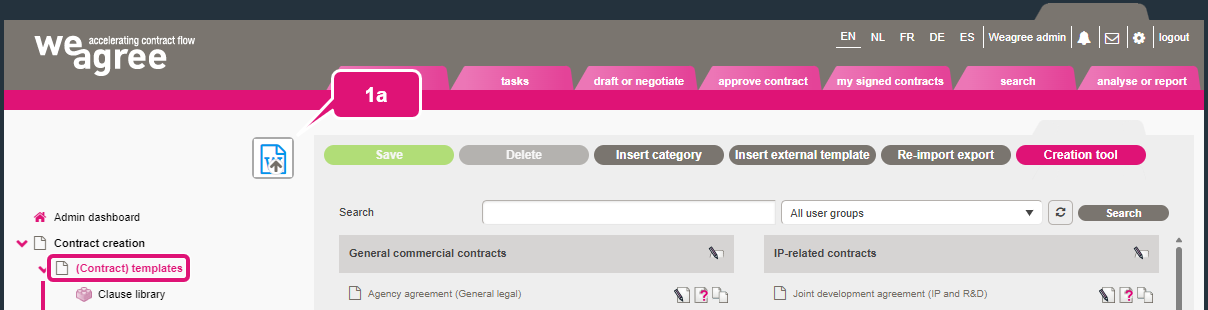
1. To enable template versioning when creating a new template:
a. Click the template insertion button.
b. Switch Enable versioning to the ON position.
c. Configure the other template settings as desired and click Save.

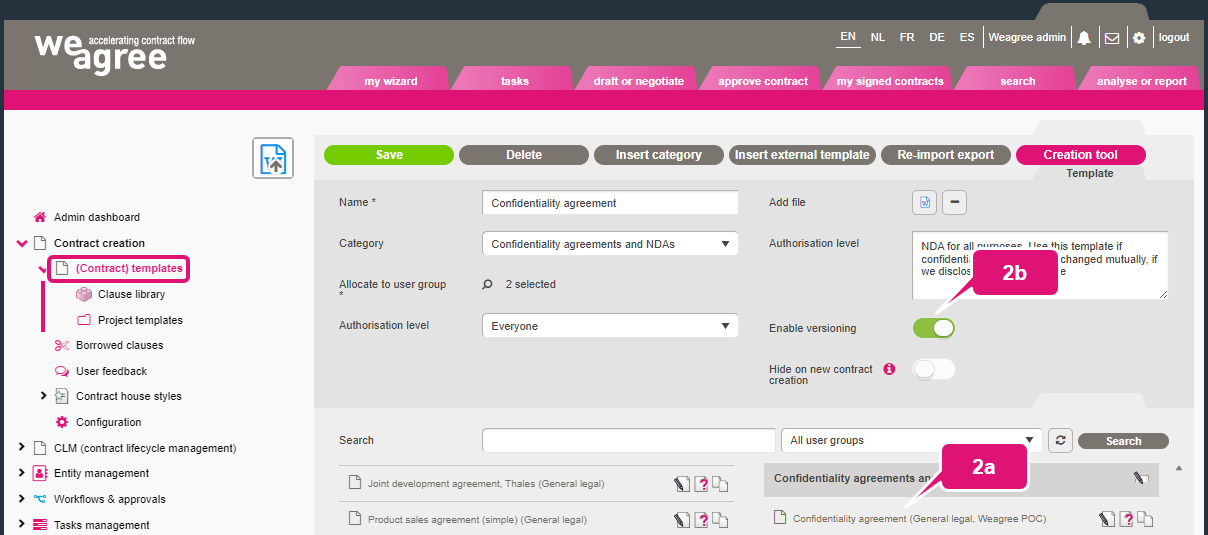
2. To enable template versioning for an existing template:
a. Click the template name.
b. Switch Enable versioning to the ON position.
c. Click Save.
B. MANAGING TEMPLATE VERSIONS
All versions of a template reside under the same ‘template carrier’ and can be managed from a single screen, accessible either from the Administrator page or from the Template Creation Tool.
1. To manage the template versions from the Administrator page (under Contract creation > (Contract) templates):
a. Click the template name.
b. Click Versions.

2. To manage the template versions from the Template Creation Tool:
a. Click on the template name at the top of the outline.
b. Click Edit the template settings.
c. Open the Versions tab.


3. Click Create to add a new version. This will copy the latest (published) version and allow you to edit it before publication.
Note: you will not be able to add more versions if there is still an unpublished version.
4. Click Delete to permanently remove the selected version.
Note: generally speaking, there is no need to delete any version. However, it may be practical to do so if a new version was created just before some final changes to the current version. If those changes must apply to the new version as well, it might be quicker to delete it and then create a new up-to-date copy of the current version, than it would be to manually update the new version.
5. Click Insert to add a separate, existing template as the new version. This can be useful if you have previously created separate templates for versioning purposes, but now wish to consolidate them under the same template carrier.
6. Click the pen-and-paper icon to open a version in the Template Creation Tool.
Note: when you open a template in the Template Creation Tool in any other way, the newest version will be opened by default.
7. You may customise a version’s document title and its decimal number (useful to account for minor updates).

8. If you want to deviate from the Weagree Wizard’s default version numbering, you may enter a custom version number or description in the Template version field of the Template properties tab.
Note: the version number (or description) will always appear behind the template name on the New contract page/panel.
Click Save when you are done.

When you have opened an unpublished version, the Create button is replaced by a Publish button. Publishing the new version of the template has the following effects:
- The New contract page/panel will no longer separately list the newest version for testing purposes (for further information, see section C below).
- It will no longer be possible to create contracts using the previous template version.
- Users will gain the option to update any previously created contract based on that template to the newest version.
Because of the above, and because there is no undo action for this, it is therefore recommended that you thoroughly test the new version before publication; see section C directly below.
C. EDITING AND TESTING TEMPLATE VERSIONS
When you have opened any given template version (see step 6 under section B above), you may freely edit it like any other template. Changes to a template version will immediately become effective.
In case of an unpublished version, newly added building blocks, clauses and choice tree options will be marked by small magenta dots on the right margin of the template outline.
Furthermore, you and other users granted the Template testing right can test a template version before publication (for further information on assigning access rights, click here). To enable this functionality:
1. Open your user profile.
2. Click Enable test mode.
When test mode is enabled, a wrench icon appears next to your name. On your user profile, the button Enable test mode is replaced by the Disable test mode button.

The new version of any template to which you have access will appear on the New contract page/panel, directly above the most recently published version of that template. It will not be visible to anyone without both the Template testing user right and access to the template in general. After publication, only the newest version will remain there even if test mode is enabled, and will be available for all users with access to the template.
Note: when you have enabled test mode, the Weagree Wizard will always generate a new document for you in any contract entry, rather than overwrite an existing generated document. The effect is the same as enabling the Add secondly generated functionality on your portal (for further information on this functionality, click here), except that the effects are limited to your account. This applies to all your contract entries, regardless of the template or template version used. It is therefore prudent to use test mode only when actually needed.
