Contract sheets can be set up for easy (automated) risk assessments. For each contract field, and therefore for each key aspect of a contract, it is possible to predefine which values are acceptable and to what degree. Once that is configured, the act of filling in such contract fields will automatically produce appropriate risk ratings.
This is particularly useful for contracts and amendments that are still in the drafting stage. When importing a counterparty’s draft, a contract sheet must be selected to work with it in the Weagree Wizard (which of course carries over if the contract is ultimately transferred to the CLM). Therefore, any contract fields’ risk assessment configurations can be applied directly to that draft. Moreover, the results of an automated contract review (AI-analysis) will be directly applied to the contract fields, resulting in a fully automatic risk assessment in accordance with the settings applied by the administrator (rather than an AI’s unpredictable evaluation of any risks).
TABLE OF CONTENTS
A. Risk types
B. Enabling risk assessment
C. Configuring risk ratings
A. RISK TYPES
Different risks can be defined and applied to contract fields, specifying the nature of the risk(s) associated with that particular aspect of the contract. In future updates, risk types will be used to generate more detailed risk assessments.
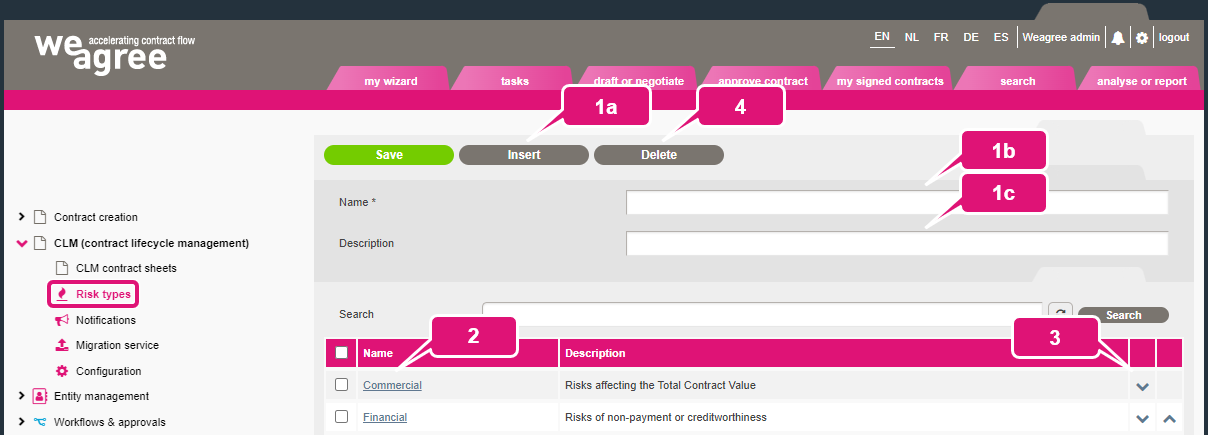
Risk types can be configured on the Administrator page under CLM (contract lifecycle management) > Risk types.
1. To add a risk type:
a. Click Insert.
b. Insert a short, distinctive name.
c. Optionally, insert a clarifying description.
d. Click Save.
2. Click on a risk to edit its name or description.
3. Change the risk types’ order of appearance with the up and down arrows.
4. Click Delete to remove any select risk type.
B. ENABLING RISK ASSESSMENT
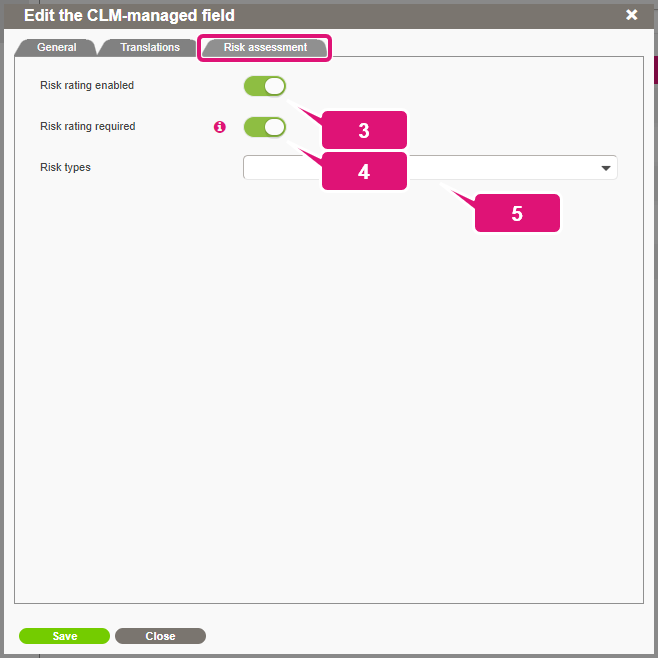
Not every contract field will relate to an aspect of the contract that necessitates or justifies a risk assessment. The risk assessment functionality must therefore be enabled on a field-by-field basis via the contract sheet editor.
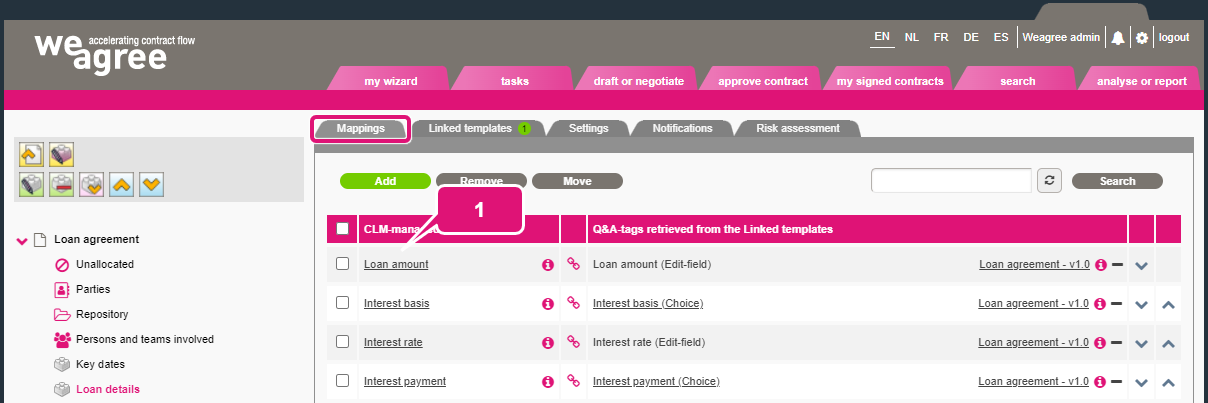
1. On the Mappings subtab, click the name of the contract field which needs to be assessed.
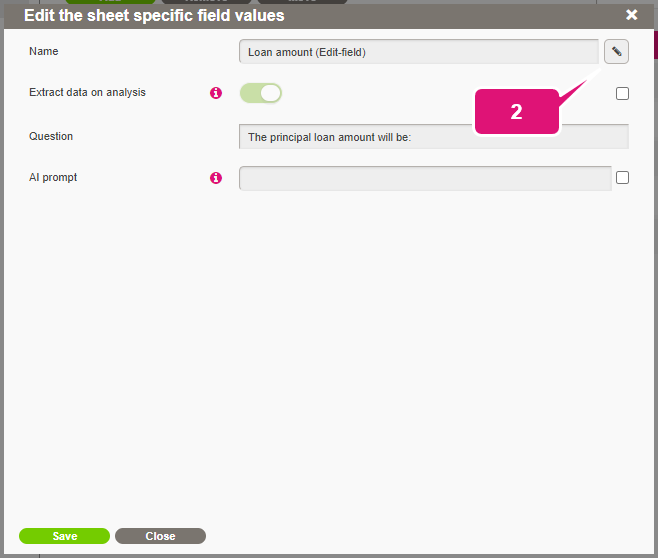
2. In the pop-up that appears, click the pen icon to open the contract field editor/form.
3. On the Risk assessment subtab, enable Risk rating enabled to permit a risk assessment of this contract field.
4. Enable Risk rating required if this contract field must always be filled in.
5. Optionally, select one or more of the previously defined risk types.
6. Click Save.
C. CONFIGURING RISK RATINGS
Once the risk assessment functionality has been enabled for a contract field, different risk ratings can be configured for different potential values (selected options or inserted numerical values) of that contract field. Once such a configuration has been made, any input for that contract field in any individual contract will be compared to the predefined, risk-rated values. In case of a match, the applicable risk rating will automatically be applied to the contract field, appearing as a coloured blob in the draft or managed contract’s sheet.
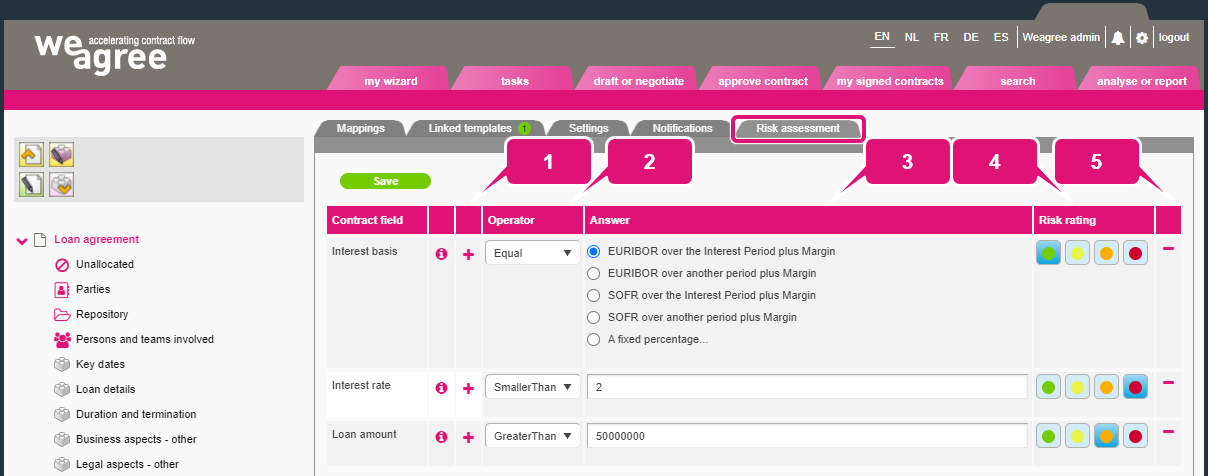
The risk rating configuration is done on the Risk assessment subtab of the contract sheet editor.
1. Click the plus sign to add a risk rating for a contract field. You can have multiple risk ratings for a single contract field to account for different potential values.
2. Select the appropriate mathematical operator. The risk rating will be applied to the field in an individual or not, depending on how it compares to the option selected or numerical value inserted here. The comparison will either require that it is the same or not the same (Equal or Not equal), or that the value is either greater or smaller (Greater than or Smaller than).
3. In the Answer column, select the option or insert the numerical value to which the individual contract’s field must be compared.
4. Select the risk rating (ranging from Conform policy (acceptable) – green – to Unacceptable (deal breaker) – red) that must be applied if the conditions of the Operator and Answer columns are met.
5. Click the minus sign to delete the risk rating.
6. Click Save.