


There are two cases in which a character like a separator or blob, or another placeholder, can appear in the WYSIWYG view and document when it shouldn’t.
1. A question has a superfluous placeholder
If certain content is not always inserted, it may be that the question which determines the inclusion or exclusion – or even a preceding question – has been given a default answer. If no answer is given because inclusion is not required, this can result in a superfluous placeholder appearing in the text.
Check all questions within a building block or clause for redundant default answers and remove the ones you find.
Note: be aware that a global question may not have a default answer, but a local choice tree to which it has been linked might. Always check local choice trees for unwanted placeholders. These may turn up in particular if not all of the global question’s options have been linked to all options of the logcal choice tree.
2. A checkbox question with clauses has separators
Checkbox questions, allowing for multiple answers, may be adding separators when they shouldn’t. This is typically the case when the question must insert various subclauses.
Separators are appended directly after the text of each selected choice option. This can become problematic when each of those options is converted into its own paragraph.
Because the tag for the choice question is contained in another clause, that clause must only ‘end’ after insertion of the last selected option. If the question has been configured to insert a Closing character (e.g. a semi-colon or full stop), that separator would normally appear in the top clause containing the choice question tag.
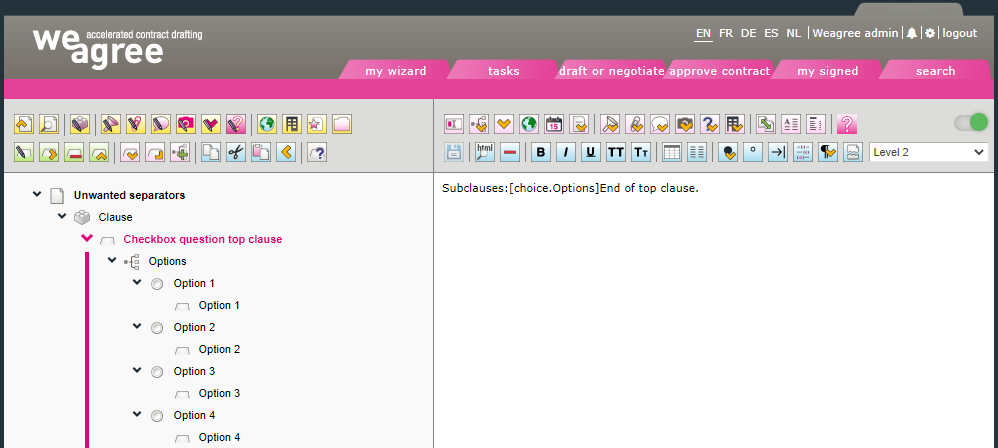
However, it cannot appear in the top clause anymore due to the choice question inserting its own clauses. This results in the closing character being pushed into its own paragraph beneath the last subclause, using the styling of the top clause. Any text in the top clause that follows the question tag will likewise be pushed into that paragraph at the bottom. A template structure such as this:
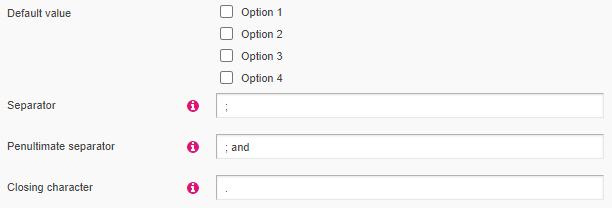
With a checkbox question such as this:
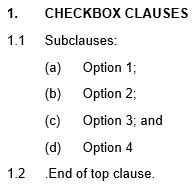
Would produce a document like this (note the full stop directly preceding “End of top clause”):
There are three ways to solve this:
a. If the separators are not (absolutely) necessary, remove them in the choice tree’s settings. You may need to edit each subclause to start with a capital letter and end with a stop.
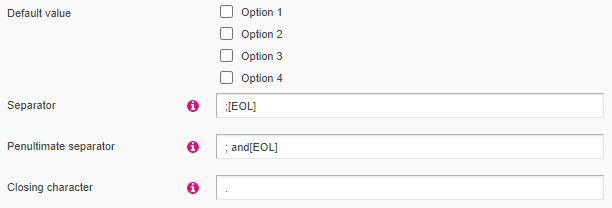
b. Create a subclause directly beneath the top clause, with the appropriate styling. Add the choice tree to that subclause. Remove the subclauses from the choice options and directly insert the text of each subclause into each corresponding choice option. Open the choice tree’s settings and add [EOL] to the end of the Separator and Penultimate separator fields, like so:
A minor downside of this approach is that it will not produce a numbered list in the WYSIWYG view.
c. For each subclause, create a series of choice trees using the Insert text if not-checked functionality to determine which options have been selected. Insert the choice tag of each choice tree where the separator should appear. For If selected and If not-checked, add the appropriate separator. This is complex and time-consuming, but will be reliable and also produce the correct output in the WYSIWYG view. For more information, click here.
Note: any text that should immediately follow the subclauses should also be added to a separate (probably not-numbered) clause.
