


The Weagree Wizard offers various login and user authentication settings. These control who can access your organisation’s portal and under what conditions. On the Administrator page, this can be configured under Configuration Weagree Wizard > Login & user authentication:
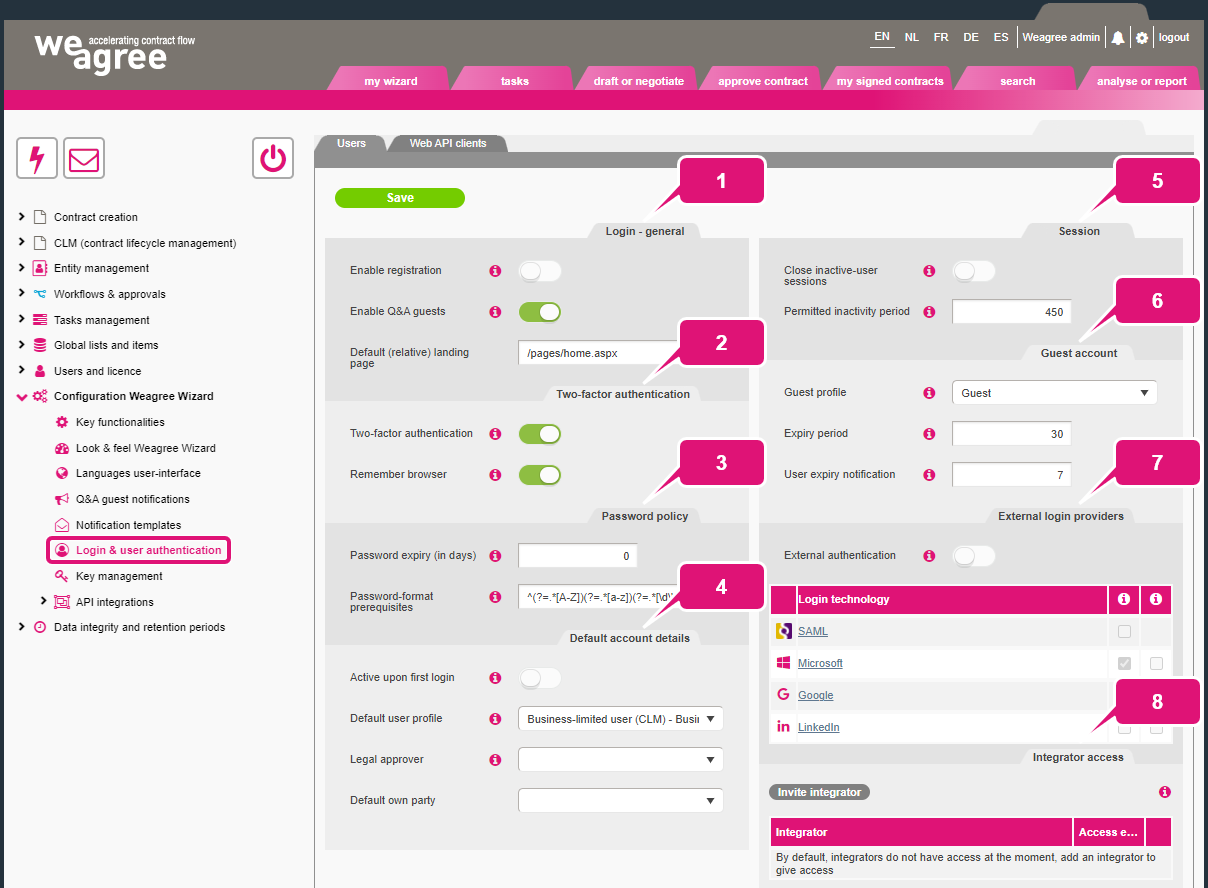
After making any changes as described below, click Save.
1. Login – general
a. Switch on Enable registration to allow any visitor to your organisation’s portal to manually register an account. See also the section on Default account details below.
b. Switch on Enable Q&A guests to allow your users to invite others as guest users, for the purpose of drafting and reviewing particular contracts.
c. The Default (relative) landing page field determines which page will load when a user navigates to https://[your portal name].weagree.com/ in their browser. This setting is ignored if the user enters or follows a link to a different page. The default value (“/pages/home.aspx”) directs the user to the My wizard page.
2. Two-factor authentication
a. Switch on Two-factor authentication (2FA) to require the use of an authenticator app (for example Google’s or Microsoft’s app) for logging in. When enabled, the user will be automatically prompted upon logging in for the first time to connect their account to an authenticator app.
b. Switch on Remember browser to require 2FA only once as long as the browser continues running (regardless of the user’s Weagree Wizard session).
3. Password policy
a. Insert a number in the Password expiry (in days) field to determine how long a user may continue to use a password. Upon expiry, the user will be prompted to set a new password. When left blank (or if the value is “0”, i.e. zero), passwords will remain valid indefinitely.
b. The Password-format prerequisites field defines the minimum requirements for new passwords. It is generally recommended that the default value (“^(?=.*[A-Z])(?=.*[a-z])(?=.*[\d\W]).{8,}$”) remains unchanged, although you may change the number “8” to a higher value. This will increase the minimum number of characters per password.
4. Default account details
Note: The following settings apply only to accounts that are manually registered by users (if Enable registration is switched on) or automatically created through single sign-on (SSO). They do not affect accounts created by administrators via the Weagree Wizard’s user management.
a. Switch on Active upon first login so any new account becomes active immediately. When left disabled, a user with administrator privileges will have to activate such an account via the Weagree Wizard’s user management.
b. New accounts will automatically be assigned to the selected Default user profile. It is recommended that you select a user profile based on either the 1-/2-Template tool or the Business-limited user licence. Administrators can always change any user’s profile via the Weagree Wizard’s user management, if needed.
Note: ensure a user profile is always selected. Be mindful that licence restrictions may prevent the creation of more active accounts under a particular profile. More information on user profiles and monitoring licences can be found here and here.
c. Optionally, new accounts may be assigned a default Legal approver. The selected user will have to approve every contract drafted by such users. Administrators can always change any user’s default approver via the Weagree Wizard’s user management, if needed.
Note: this setting predates the current approval workflow functionality, which is much more powerful and flexible. Using both simultaneously may also affect the operation of your workflows. It is therefore strongly recommended that you do not configure a default legal approver, but create a template-specific approval workflow instead. More information on approval workflows can be found here.
d. Optionally, new accounts may be assigned a Default own party. When creating or importing a contract, that party will automatically be selected as the ‘own party’ to the contract. The user may still select another entity if available in the party database, however. Administrators can always change any user’s default own party via the Weagree Wizard’s user management, if needed.
5. Session
a. Switch on Close inactive-user sessions to automatically logout users when they are inactive for a set amount of time. A user is considered inactive if the Weagree Wizard is still opened in a browser window, but no actions (i.e. clicks or saves) are being performed.
b. When the aforementioned setting is enabled, the field Permitted inactivity period determines how many minutes after their last action a user will be automatically logged out.
6. Guest account
For an explanation of these settings and guest users in general, click here.
7. External login providers
a. Switch on External authentication to enable SSO on your organisation’s portal. User accounts will be created automatically for anyone who accesses the Weagree portal while logged in on your organisation’s own network
Note: if SSO is enabled, do not any manually create accounts unless a user for whatever reason will not be using SSO. The system is designed to automatically create a new account when a user logs in using SSO for the first time. If a manually created account already exists, this may result in the inadvertent creation of a second account. In such event, it is recommended that you transfer the user’s old account’s contracts to their new SSO-enabled account and finally deactive (or delete) the old account. Click here for precise instructions.
b. Click on a login technology’s name to open the settings for that particular SSO solution. You may have to contact your IT department or expert for assistance in setting up the SSO connection.
8. Integrator access
Click Invite integrator to enable all applicable access rights within the Weagree Wizard for an integrator-type user (including Integrators, Basic integrators and Customer IT support accounts). These are typically employed by Weagree or a third-party support service. A pop-up will appear where you can:
a. Select the integrator.
b. Set the duration of the access rights.
c. Add a personal note or instruction for the integrator. This will be inserted into the automated notification the integrator will receive.
