


For any given item in the contract sheet’s outline, the Mappings subtab displays the available contract fields. These may include fields that take user input from questions in linked contract templates. Contract fields may be freely created and allocated to any of the items (apart from Unallocated, as explained below). Any field present in a contract sheet item will appear in the eventual managed contract’s sheet.
TABLE OF CONTENTS
A. Creating and allocating linked contract fields
B. Adding and managing contract fields
A. CREATING AND ALLOCATING LINKED CONTRACT FIELDS
Contract fields linked to questions in contract templates may automatically be filled in if the managed contract was first created in Weagree and then directly transferred to the CLM. Within the creation tool, these questions may be added and then moved from an essentially inactive pool to specific building blocks:
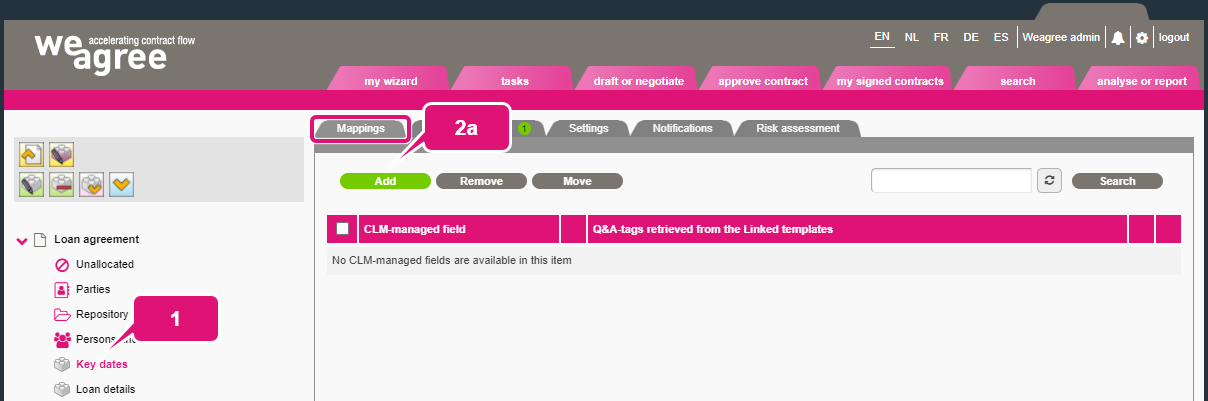
1. Select Unallocated in the contract sheet’s outline.
2. To create (add) a contract field:
a. On the Linked templates subtab, click Add a template.
b. If the contract sheet is linked to multiple templates, select the applicable template from the Relation dropdown menu. For information on linking contract templates, click here.
c. By default, all questions in the template are listed except those already linked to fields used in this contract sheet. You may filter out different types of questions by (un)ticking the applicable checkboxes.
d. Tick the checkbox next to a question to add it as a contract field. You may select any or all of them (by ticking the top checkbox). Note that you will be able to return to this screen at any time (see also below) and select additional questions.
Note: the questions will be listed in their order of appearance in the template.
e. The Contract field(s) column lists the names of any existing contract fields linked to the various questions. This may be the case if a field was previously created for this contract sheet, but then removed without being deleted altogether. Another possibility is that the same template is or was previously linked to another contract sheet. You are free to (re)add an existing contract field to the contract sheet, even if it is also used in another contract sheet.
f. Hover the mouse over an information icon to see the full question.
g. Click OK to confirm your selection.
The selected questions will appear on the Mappings subtab.


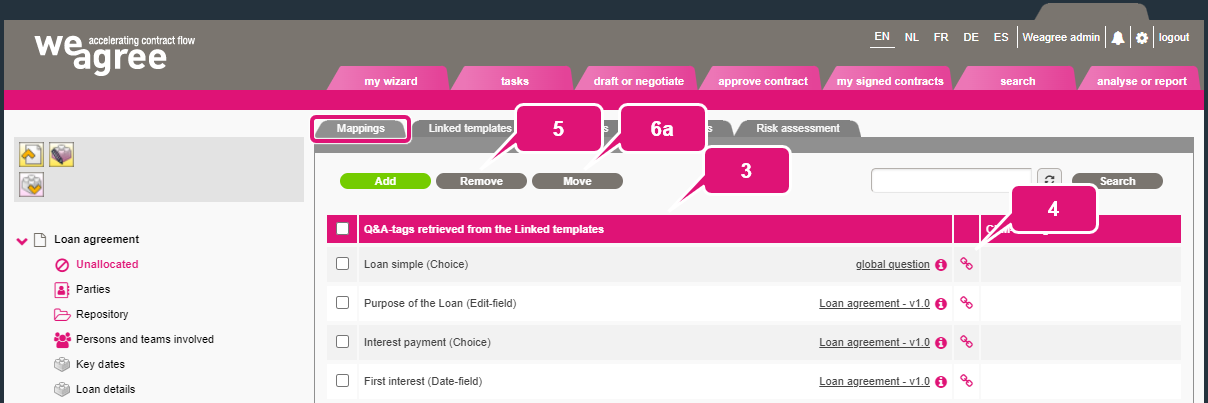
3. The Q&A-tags retrieved from the linked templates column lists the previously selected questions. The text on the left shows the name (tag) of the question and what type of question it is, the underlined text on the right shows from which template it comes (or if it’s a global question and therefore not specific to any one template). Hover the mouse over an information icon next to the underlined text to see the full question.
Note: you may click the underlined text to edit the actual question. As this will directly affect the template or global question, however, caution is advised.
4. If you wish to link the question to an existing contract field, click the chain-link icon and select the applicable field from the pop-up that appears. The field will then appear in the CLM-managed field column. Otherwise, moving a question to a contract sheet item will create a new contract field (see below).
Note: contract fields that have been added to a contract sheet may be linked to additional questions at any time. This may be necessary after linking additional templates, or in some cases after changes to a linked template resulting in duplicate local questions. Manually linking a question to an existing contract field at this stage is therefore only necessary specifically to avoid creating a new contract field. In case of a particularly generic or common question (e.g. regarding the applicable law or duration of the contract), it is advisable to avoid creating multiple essentially identical contract fields. The contract sheet will ultimately determine from which templates a contract field can take input, so it will not be a problem if a field is also linked to templates to which the contract sheet is not linked.
5. Click Remove to delete any selected question.
Note: if the question has already been linked to a contract field this connection will remain intact, so the deletion will not have an effect outside of this Unallocated item. The actual template question will not be affected either.
6. To allocate linked questions to another item in the contract sheet’s outline:
a. Tick their checkboxes and click Move.
b. Select the intended item (Unallocated and any global CLM building blocks cannot be selected).
c. Click OK.

B. ADDING AND MANAGING CONTRACT FIELDS
It is also possible to add (new) contract fields directly to any item in the contract sheet’s outline (Unallocated excepted). These may or may not be linked to any contract template’s questions; if not, these fields will there always have to be filled in directly on the managed contract’s sheet (rather than via the questionnaire).
1. Select the item in the contract sheet’s outline to which you want to add a contract field.
2. To add a (new) contract field.
a. On the Mappings subtab, click Add.
b. In case of existing contract fields, select them by ticking their boxes and click OK.
c. To add a new contract field, click Create.
d. In the pop-up that appears, select the desired type of field from the Type dropdown menu. This choice will determine which other settings will be available for the field. Complete the rest of the form (insofar as applicable) as you would do for a question in the Weagree Wizard’s template creation tool. Note that any text inserted for Name (e.g. “Effective date” or “Applicable law”) will be shown on the managed contract’s sheet, next to the contract field itself. For more information on the configuration of questions, see the Q&A creation – basics and Special topics sections of this knowledge base.
Note: inserting any text for the Question field is not mandatory, but may be useful for providing context and the automated contract review (see e directly below). If any text is inserted, an information icon will appear next to the contract field on the managed contract’s sheet, which produces a tooltip with the inserted text.
e. If automated contract review (AI-driven contract analysis) is or will be enabled on your Weagree Wizard portal, the contract field can supply a prompt to the AI whenever such a review is performed. By default, the prompt is the text in the Question field, which will be automatically filled in if the contract field is linked to a template question. If you require a more targeted, precisely formulated question for the AI, you may insert it into the AI prompt field. The text there will not be visible to the end-user.
f. To include the contract field in any automated contract review, enable Extract data on analysis. When disabled, the AI will not receive any prompt for this contract field.
g. On the Translations subtab, you may provide translations in any of the languages enabled on your Weagree Wizard portal for the Name, Question and Explanation fields of this form.
Note: the Risk assessment subtab is discussed separately.
h. Click Insert to finalise the contract field and add it to the previously selected contract sheet item.


Note: there are two field types exclusive to contract sheets, namely the Calc and DateCalc fields. With these, you may automatically perform (date) calculations. They can be used in conjunction with other contract fields, including ones that take their input from questions in a contract template. They may also be combined with expressions from lookup lists (for more information on lookup lists, click here).
An example DateCalc expression might be:
[Datecalc.Deadline 1.([Date.Effective Date] + [Lookup.First Milestone.Days])]
Here, the first item would refer to a date-field and the second to a field invoking a lookup table to determine how many days after the effective date the first milestone must be reached. Both fields must have been added to the contract sheet. The product of the DateCalc expression will be a precise date for the first milestone. Should either of the aforementioned variables be changed, the calculated date will be automatically updated. This can be very useful for generating timely e-mail notifications.
For more information on performing calculations, see the tutorials Calculations and number-formatting and Calculating a date (and inserting it into the contract) (with the caveat that, as just illustrated, there is no need here to embed the formula in a [calc] or [datecalc] tag).
3. To edit a contract field that has been added to a contract sheet:
a. Click the contract field’s name.
b. In the pop-up that appears, click the pen icon to open the contract field editor/form (see 2d and further above). You may change any of its properties apart from the field type.
c. Tick the Extract data on analysis checkbox to override the default setting.
d. Tick the AI prompt checkbox to override the contract field’s custom AI prompt (the Question field’s text will be used instead).
Note: the override settings will either enable or disable data extraction or ignore custom AI prompt for contracts using this specific contract sheet. The overrides will not affect other contract sheets containing this contract field.
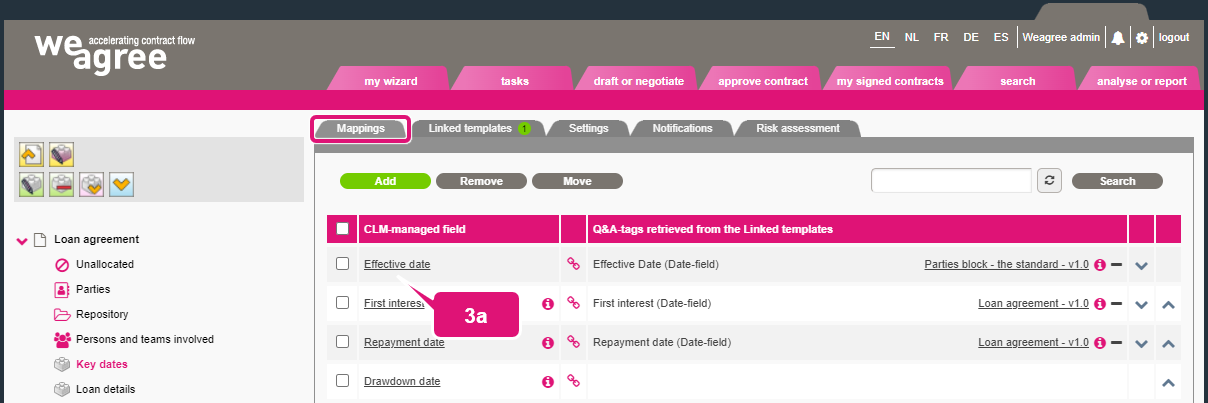

4. Click on the chain-link icon to link a contract field to other available questions of the same type (from any contract template that has already been linked).
5. For a choice or lookup contract field linked to a template question, click the underlined question name (tag) in the Q&A-tags retrieved from the linked templates column to (re)map the contract field’s options to the question’s choice tree or lookup table.
6. For a contract field linked to a template (or global) question, click the underlined template name (or the link global question) in the Q&A-tags retrieved from the linked templates column to edit the linked question.
Note: as this will directly affect the template or global question, caution is advised.
7. Click the minus sign to unlink a question from the contract field. The contract field and any current contract data for that field will remain intact, but the field will not be able to take new user input from that question (unless it is relinked).
8. The order in which the contract fields are listed can be changed by clicking the up and down arrows.
9. Click Remove to delete any selected contract field.
10. To allocate selected contract fields to another item in the contract sheet’s outline, click Move and then select the intended item from the pop-up that appears.

