The Weagree Wizard’s Microsoft Entra ID integration (formerly known as Azure ADFS) allows for single sign-on (SSO) authentication, requiring only that the user is logged in on your secure network in order to gain access to the Weagree Wizard (i.e. there will be no separate login page for Weagree). This also allows for automatic user registration.
Microsoft Entra ID integration can be enabled and configured as follows.
TABLE OF CONTENTS
A. Azure
B. Weagree Wizard
A. AZURE
1. Go to https://portal.azure.com/#view/Microsoft_AAD_IAM/ActiveDirectoryMenuBlade/~/RegisteredApps and click on New registration.

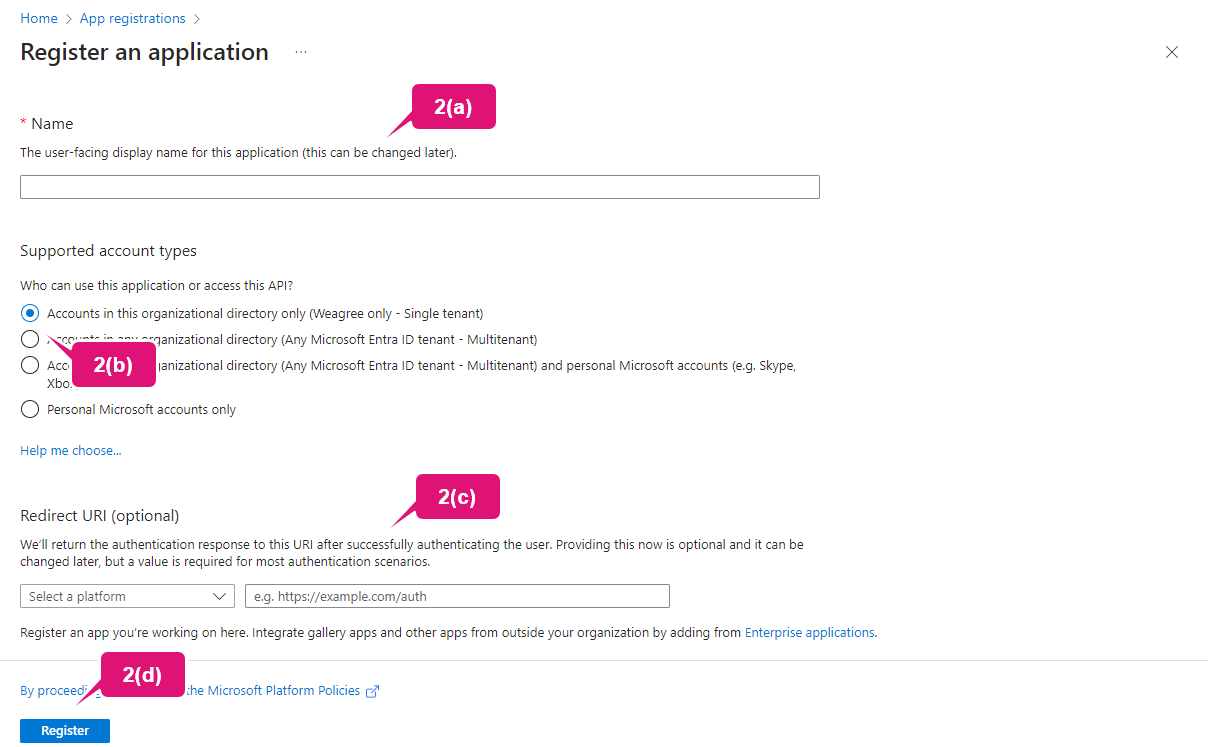
2. The page Register an application will load. Here, you must:
a. enter a descriptive name
b. under Supported account types, select Accounts in this organizational directory only ([your default directory] only – Single tenant)
c. under Redirect URI (optional), select Web as platform and insert the applicable address: https://[portal name].weagree.com/signin-microsoft
d. click Register
3. The Overview of the new app will load. In the menu on the left, click Authentication.

4. Under Implicit grant and hybrid flows, select both Access tokens (used for implicit flows) and ID tokens (used for implicit and hybrid flows).
5. Click Save.

6. In the menu on the left, click Certificates & secrets.
7. Click New client secret.
8. The Add a client secret panel will open. Enter a fitting description, select a duration and click Add. A new client secret will appear on the page, with an expiration date, a Value and a Secret ID.

B. WEAGREE WIZARD
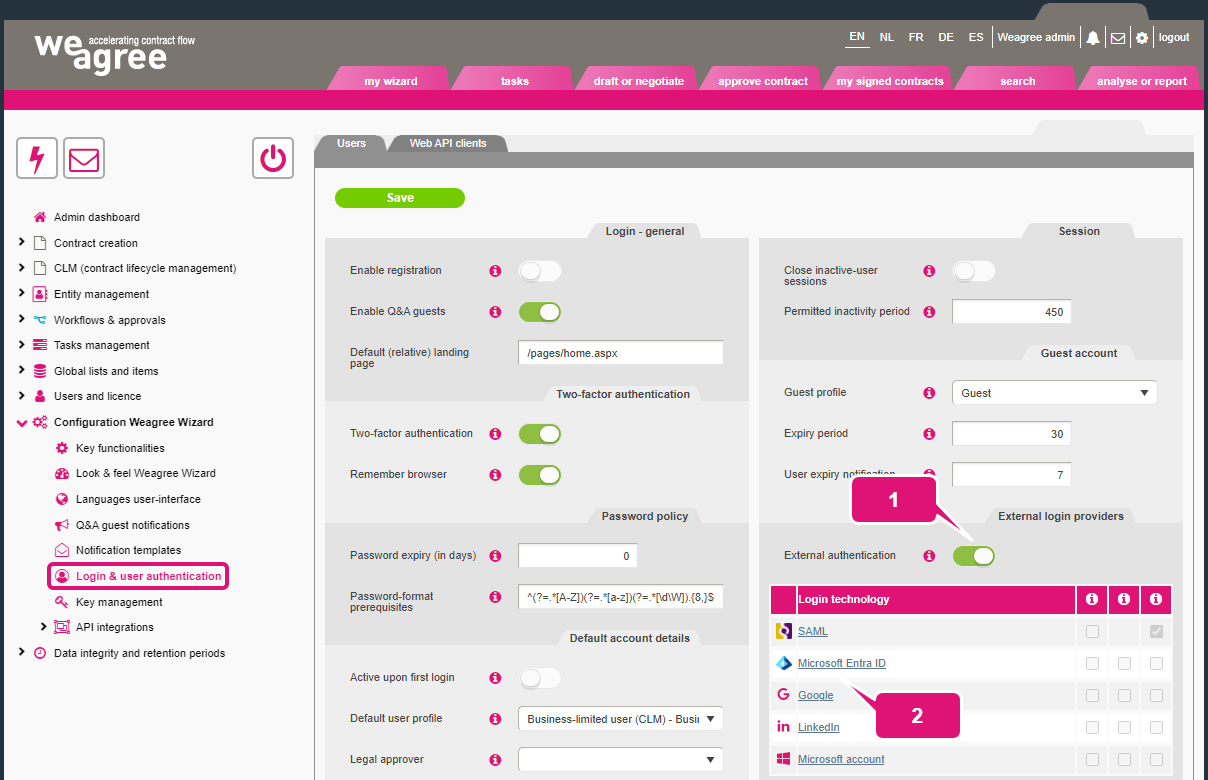
After the application in Azure has been fully configured as described above, it’s time to make the connection in Weagree. For this, you will need to first navigate to Configuration Weagree Wizard > Login & user authentication on the Administrator page.
1. Enable External authentication if it is not active yet.
2. Select Microsoft Entra ID from the Login technology column.
3. The pop-up Edit login provider will open. Here, you must:
a. enable Active
b. in the Application (client) ID field of the pop-up, insert the string of characters next Application (client) ID on the Overview page of the Azure app, as mentioned above
c. in the Client secret field of the pop-up, insert the string of characters under Value on the Certificates & secrets > Client secrets page of the Azure app, as mentioned above
d. in the Directory (tenant) ID field of the pop-up, insert the string of characters next to Directory (tenant) ID on the Overview page of the Azure app, as mentioned above (note: you may need to save your previous settings and reopen the pop-up for this field to become visible)
e. enable Login automatically
f. enable Show on login page
g. click Save

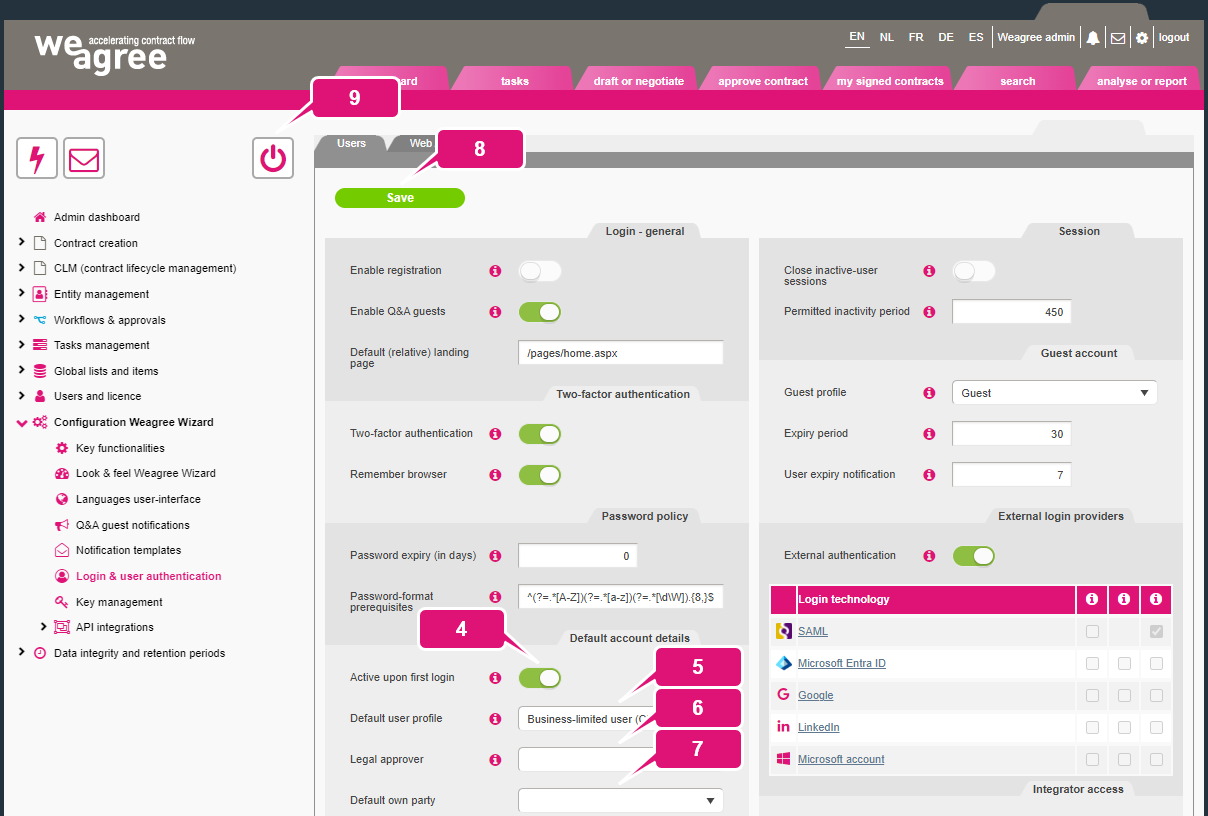
4. By default, although a Weagree Wizard account will automatically be created when a member of your organisation uses the SSO connection to access your Weagree portal, the account will remain inactive (preventing the user from actually logging in on the Weagree Wizard) until an administrator activates it via Users and licence. If instead accounts should be automatically activated and assigned a standard profile, enable Active upon first login.
5. Regardless of whether accounts created through SSO should be automatically activated, always select a Default user profile.
Note: administrators may assign different profiles to individual users at any point after account creation.
6. Optionally, select a Legal approver. Contracts created by accounts created through SSO will then always be submitted for review to the selected user (the user will not be able to generate a document until approval has been given).
Note: it is usually advisable to leave this blank. If approvals are required, it will in most cases be better to set up generally applicable approval workflows. For more information, click here. Administrators may also designate different legal approvers for individual users at any point after account creation.
7. Optionally, select a Default own party. This entity from the Own party database (entity management) will then be selected by default when users with accounts created through SSO start new contracts.
Note: administrators may select different default parties, or remove the default selection altogether, for individual users at any point after account creation.
8. Click Save.
9. Click Restart the Weagree application.
Note: restarting the application will interrupt concurrent user actions. If the portal is already in active use, it is recommended that you notify all potentially affected users at what time the application will be restarted, or execute a restart at a time when none are (expected to be) using the Weagree Wizard.