Entire clauses may need to be inserted into (or omitted from) a document, depending on certain questions. This is accomplished via clause inclusions, which resemble single-checkbox choice fields. The insertion is achieved by checking the box.
Unlike an actual choice field, however, a clause inclusion is directly attached to a (global) building block or contract clause in the template outline. There is no need to create a separate choice element or choice answer, nor to tag it within the applicable template component’s body text.
TABLE OF CONTENTS
A. Creating a clause inclusion
B. Optional and advanced settings
C. Editing a clause inclusion
D. Removing a clause inclusion
A. CREATING A CLAUSE INCLUSION
Adding a clause inclusion to your template only involves the target building block or contract clause.
Note: the clause inclusion will apply to all indented template components (clauses, subclauses and choice elements) underneath the selected building block or contract clause. Unless only some of those must be optional, it is therefore enough to apply a clause inclusion to only the ‘top’ component.
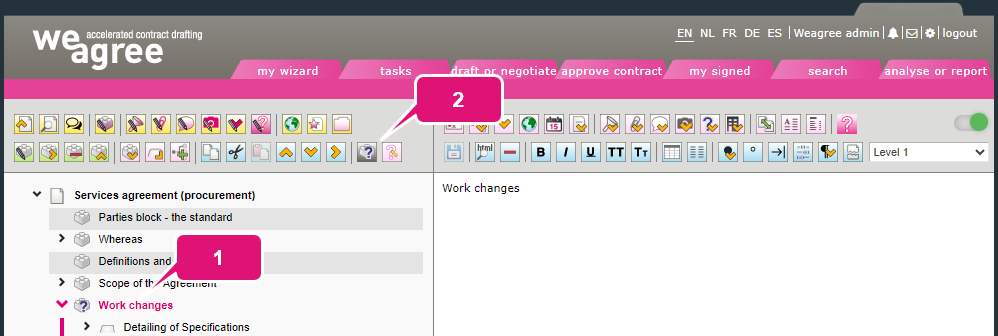
1. Select the (top) template component that must be optional.
2. Click Trigger a clause inclusion question (to insert this clause, or not). A pop-up will appear.
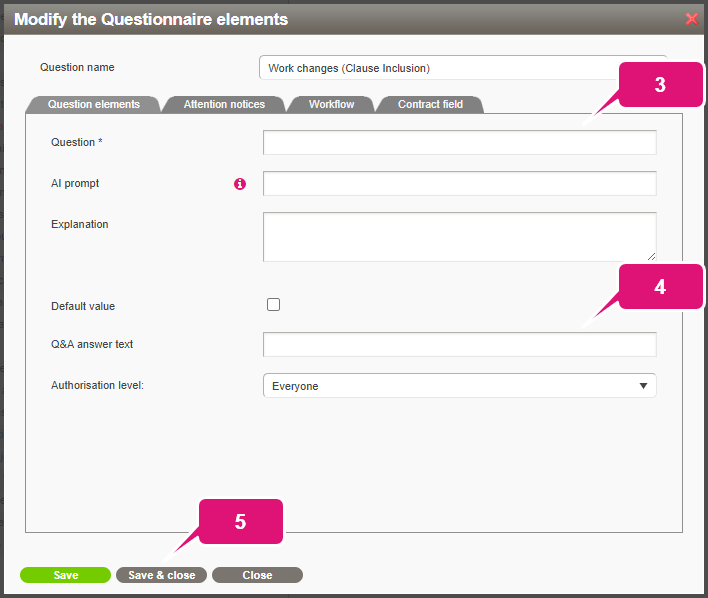
3. Formulate the question. This will be shown to the user in the questionnaire (Q&A).
4. Enter the answer text shown in the Q&A, next to the single checkbox. In most cases, “Yes” will suffice (i.e. as the response to a question along the lines of “Do you want to include a clause about [subject]?”).
Note: the user’s actual answer to the question is determined simply by whether the box has been checked or not. If the answer text is “Yes”, then leaving it unchecked implicitly means ‘No’ and no clause is inserted. The reverse – using “No” as the answer text, so that an unchecked box means ‘Yes’ – is also possible, though usually unintuitive or even confusing and therefore not recommended.
5. Click Save & close.
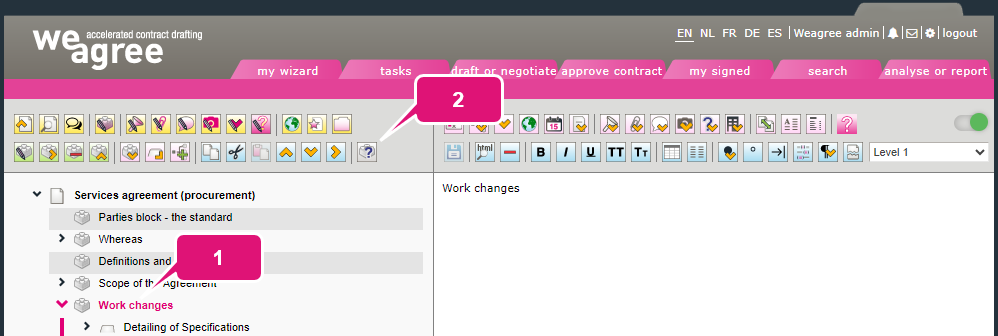
The presence of a clause inclusion will be indicated on by a blue question mark superimposed on the template component’s icon.
B. OPTIONAL AND ADVANCED SETTINGS
When creating or editing (see section C below) a clause inclusion, you may also want to consider the following settings.
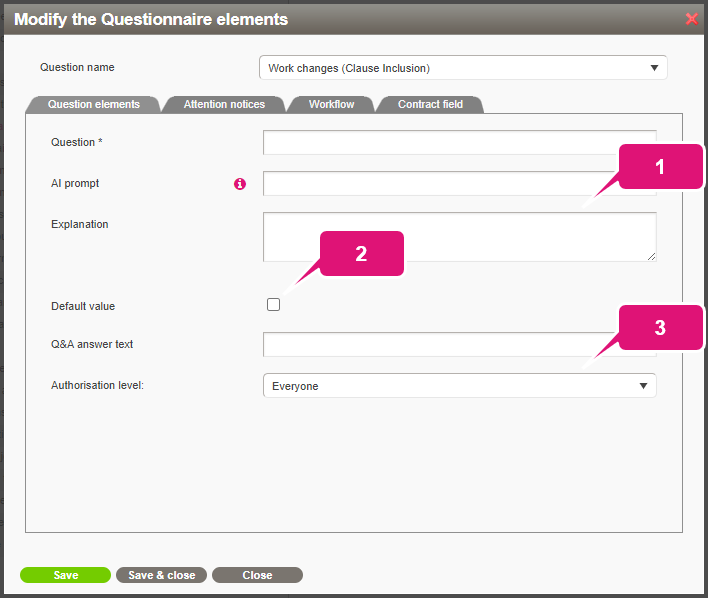
1. Enter an explanation to provide user guidance for answering the question. In the Q&A, a small warning icon will be displayed to the right of the question. The icon will have the explanation as its tooltip.
2. Tick Default value if the template component should usually be included. The clause inclusion box will be automatically checked at the start of the Q&A for the user to double-check or correct.
3. Change the authorisation level if the question should be hidden from certain users. This may be indicated for sensitive or complex matters that not every user is or should be able to determine. For more information about authorisation levels, click here.
Note: be aware that if a question is hidden this way, it will still be taken into account when generating a document. For users who cannot see the question, the template component will always be included or excluded depending on whether Default value is ticked or not.
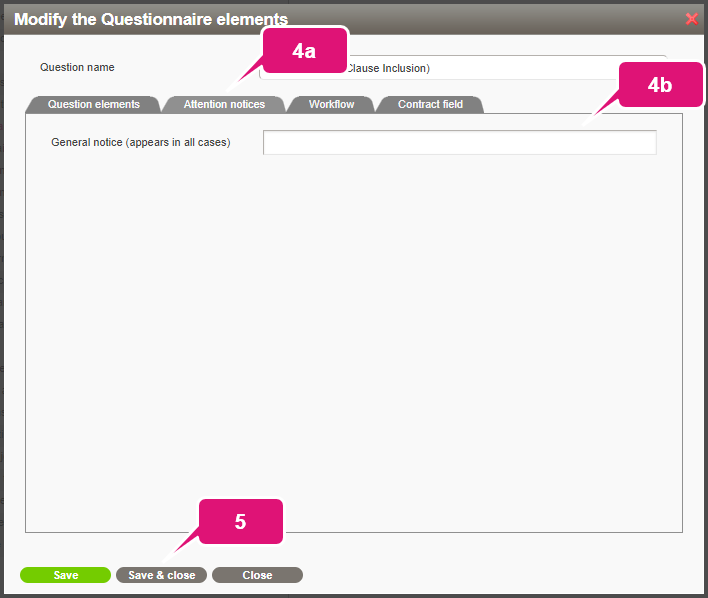
4. Add an attention notice (bold, magenta text displayed beneath the question during the Q&A) for especially important explanatory information:
a. Open the Attention notices subtab.
b. Enter the attention notice.
5. Click Save & close.
C. EDITING A CLAUSE INCLUSION
Once created, all aspects of a clause inclusion can be edited.
1. Select the template component with the clause inclusion.
2. Click Modify the questionnaire elements (question formation, default answer or explanation). A pop-up will appear.
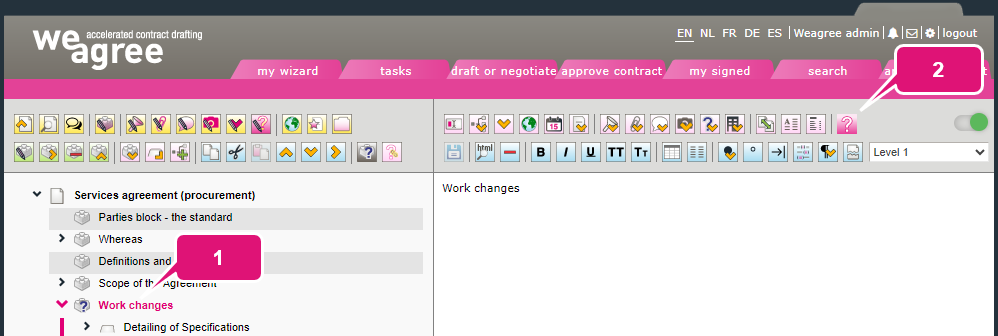
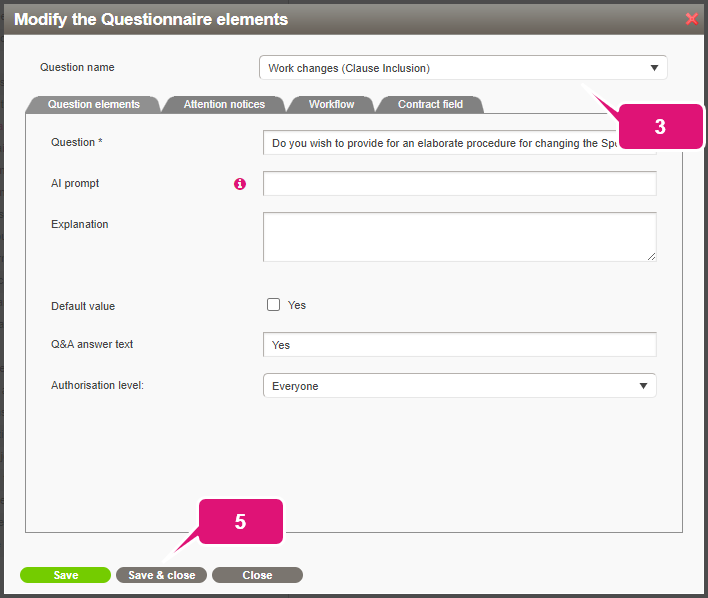
3. Select the applicable question (if the template component contains more than one).
4. Make the necessary changes.
5. Click Save & close (or Save if you want to edit another question in the same template component).
D. REMOVING A CLAUSE INCLUSION
Because clause inclusions are not dependent on any tag in the template component’s body text, they cannot be removed like most other variables.
1. Select the template component with the clause inclusion.
2. Click Trigger a clause inclusion question (to insert this clause, or not) again.
Note: this will not affect any other part of the template component or any indented template component underneath it.