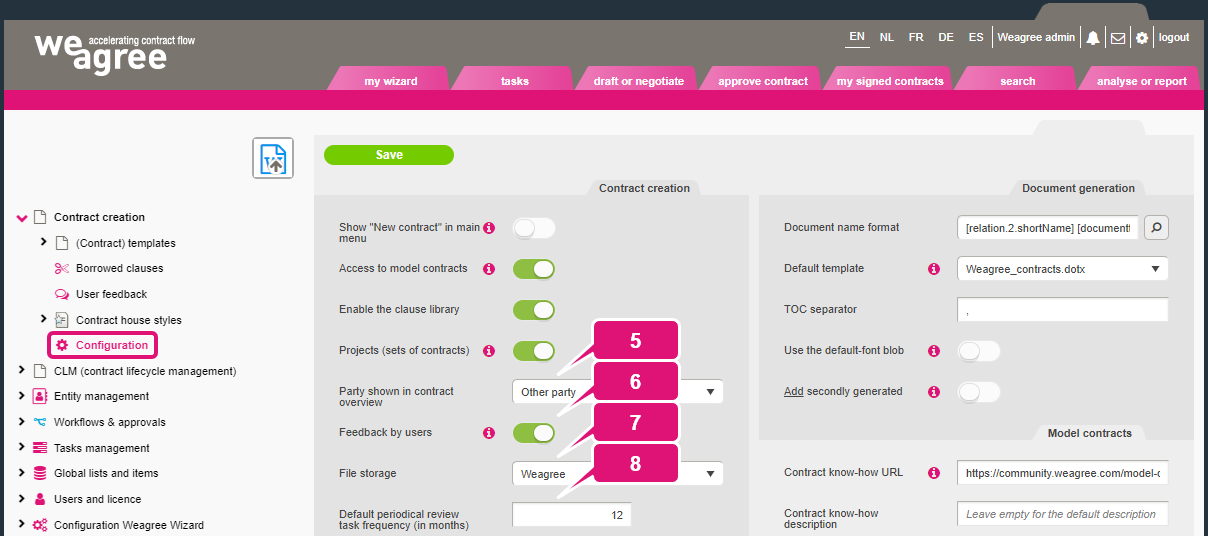
The Weagree Wizard’s contract automation functionalities do not consist only of the ability to create new contract entries, answer their questionnaires and generate documents. They also cover several additional features and file storage. These settings are available on the Administrator page, under Contract automation > Configuration. The Basic contract automation configuration tutorial briefly explained them already to get you started, but they will be covered in detail below.
Note: always click Save after making any changes.
1. Show “New contract” in main menu
When switched on, the expandable/collapsible New contract side panel (showing all templates available to the user) will be detached from the Draft or negotiate page and appear as a separate tab on the main menu, to the left of Draft or negotiate. Clicking on it will then open the templates list as a page instead of a panel.
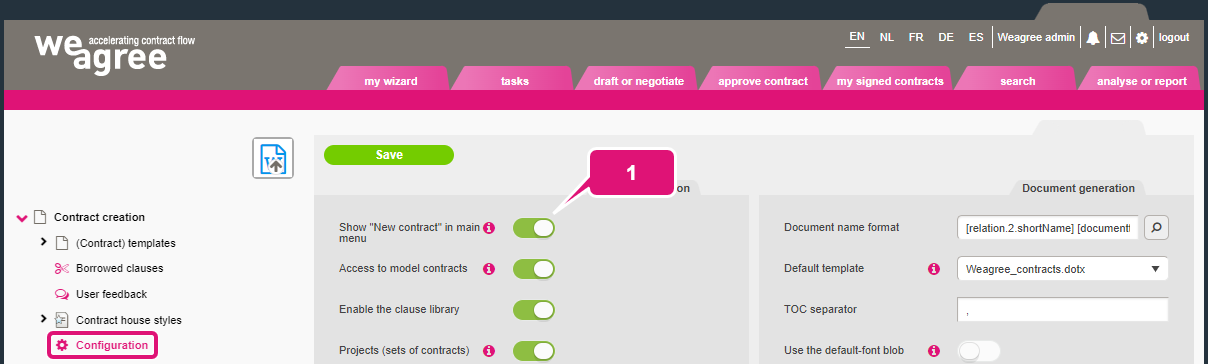

2. Access to model contracts
When switched on, the Model contracts button will appear on the New contract side panel (or page) for authorised users. These will ordinarily be accounts with full user rights, typically reserved for (senior) lawyers. The button will link to the contract know-how platform indicated on the Model contracts subtab. By default, it will redirect users to Weagree’s own dedicated website https://community.weagree.com/model-contracts/. You may of course insert the URL of any other website. If you insert a description in the second field, that will appear as a tooltip when the mouse cursor hovers over the Model contracts button.
Access to such resources may be useful for legal experts who can be trusted to edit individual contracts to suit specific needs, which the template’s questionnaire does not (yet) provide for. Model contracts can even be used to freely draft new contracts that the users wishes to manage in the Weagree Wizard, of course.
Note: for the purposes of the Weagree Wizard, there is little reason to grant access to model contracts unless the authorised users are also able to use the questionnaire’s realtime editor (via the WYSIWYG view) to directly edit the contract’s text. That functionality is governed by general access rights, which are configured on the Administrator page under Users and licence. For more information, click here.
3. Enable the clause library
When switched on, authorised users will have access to the Clause library button on the New contract side panel (or page), as well as the clause library buttons in the questionnaire. The buttons in the questionnaire let the user customise individual contracts by adding global building blocks or global contract clauses (as available in the Weagree Wizard’s clause library). The inclusion of global building blocks or contract clauses will also activate any questions they might contain, thus expanding the questionnaire. The standalone Clause library button makes it possible both to draft an entirely new contract and fully assemble a questionnaire in the Weagree Wizard using the clause library, rather than a pre-existing contract automation template. The clause library functionalities are available exclusively for accounts with full user rights, i.e. users with a lawyer licence.
These functionalities may be useful for legal experts who can be trusted to edit individual contracts to suit specific needs, which the template does not (yet) provide for. In this respect they are very similar to model contracts access as described above, but less freeform due to the nature of the clause library: it is the administrator who decides what components may be used and what degree of variability they should have, not the end-user. It is possible to restrict the use of global building blocks and global contract clauses to particular user groups in order to further control users’ freedom in drafting a complete contract. For further information on user groups, click here.
Note: as with access to model contracts, users with access to the clause library may also be permitted to use the questionnaire’s realtime editor (in the WYSIWYG view), allowing for even greater versatility when tailoring a draft or constructing it from scratch.
4. Projects (sets of contracts)
This switch shows or hides buttons for the creation of brand-new projects and links to project templates. A Weagree Wizard project is essentially a collection of multiple regular contract automation templates, linked together by their questionnaires. Answers in one template’s questionnaires are matched with related answers in another’s. As a result, the user will not have to (fully) answer both questionnaires, but only one of them. By sharing relevant information in this fashion between templates, it is possible to very quickly generate large numbers of various documents with consistent data. This functionality is not available for super-light users.

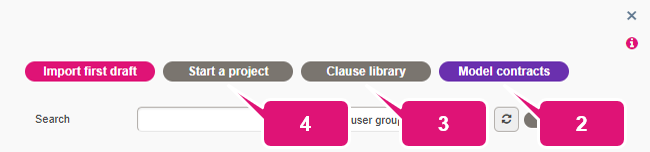


5. Party shown in contract overview
This dropdown menu determines what party name (if any) will appear on the Draft or negotiate page’s overview of contract entries. By default, Other party is selected. Alternatively, you may choose to display Own party (which might be useful if your organisation encompasses numerous companies and any one user may be drafting contracts for multiple of them), or show none at all.
6. Feedback by users
If enabled, the contract automation questionnaire will allow users to send feedback to a template administrator. Such feedback may concern the basic text of the template, but also such elements as question phrasing and choice options. This functionality is independent from users’ ability to discuss any aspect of an individual contract with other users. For more information on user feedback and template administrators, click here.
7. File storage
If any external storage solution is available, such as SharePoint, you may choose between Weagree and said medium for storing all files generated by and uploaded to the Weagree Wizard. External storage solutions are set up under Configuration Weagree Wizard > API integrations. For more information, see the API integrations section of this knowledge base.
Note: this setting only governs files of contract entries on Draft or negotiate (i.e. contract creation). You can separately configure file storage for contract entries on My signed contracts (i.e. the CLM) and entity management.
8. Default periodical review task frequency (in months)
Users with appropriate authorisation (preferably users with administrator access) can be assigned to templates as their ‘owners’ and charged with periodically reviewing the templates. The Weagree Wizard will generate tasks for such template reviews that repeat after a number of months. This must be configured from template to template, but the default period is set on this page. For more information, click here.