


Ordinarily, the user must indicate with the party selector (non-editable field with magnifier icon) which entities or individuals are party to the contract. Like global questions, however, party questions can also be pre-answered. This feature can be utilised in a few different ways to streamline questionnaires.
TABLE OF CONTENTS
A. Single party
B. Choice questions
A. SINGLE PARTY
The simplest implementation of pre-answering a party question comes into play when a party can only ever be one particular entity or individual. If your organisation consists of just one entity, or if a particular template is reserved for just one entity in your organisation, it is always known who the ‘own’ party to the contract will be. Having to nevertheless manually select that party every time a contract needs to be drafted feels redundant and inelegant.
One way to remedy this is to replace all CRM tags for this party with flat, static text, and use functional references for any [gq.Party] tags (for more information, click here). There will prevent the party selector from appearing in the questionnaire, while still ensuring that the contract will contain the relevant party data. Circumventing the party database in this way will not register the contract as belonging to that party, however. This may cause issues with e-signing, the CLM, and if at any point the single-entity organisation comes to include another entity, or an event like a merger or split-off takes place.
A better method of eliminating the redundant party selector is to perform the party selection in the template itself. This will permit the continued use of CRM and [gq.Party] tags, but still achieve the same effect in the questionnaire.
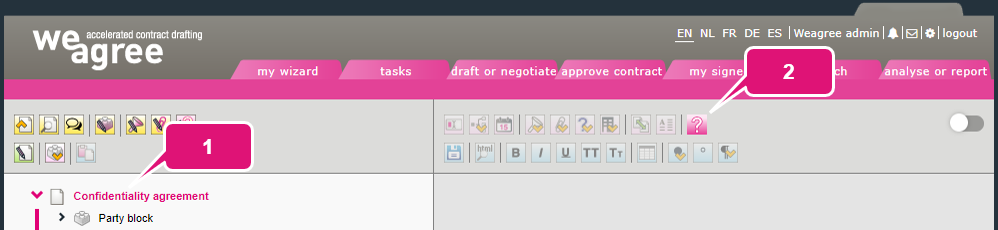
1. In the Template Creation Tool, click on the template name at the top of the outline.
2. Click Modify the Questionnaire elements (question formulation, default answer or explanation).
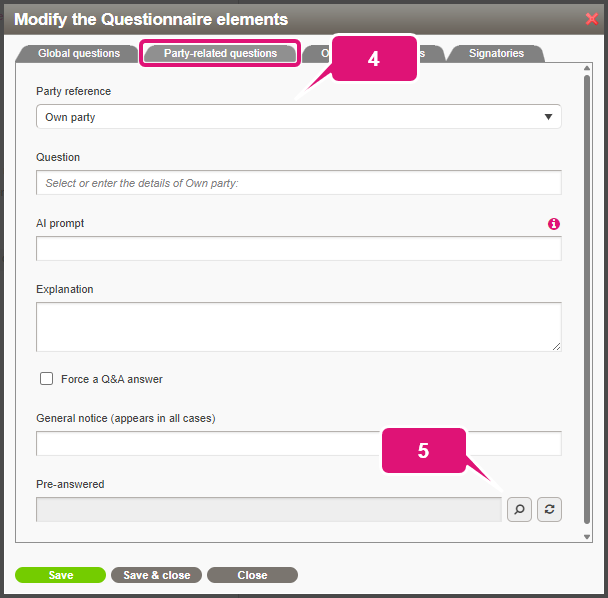
3. Open the Party-related questions tab.
4. Select the applicable party as defined in the template settings.
5. Click the magnifier icon. A party selection window opens.
6. Select the designated party as you would in the questionnaire.
7. Click Save & close.
B. CHOICE QUESTIONS
When your organisation consists of multiple entities and a template is not restricted to one entity in particular, some manual selection will always be required. Even so, you may prefer to do away with the party selector in the questionnaire and use a simple choice question instead. The reason may be as simple as reducing the number of clicks required, but can be considerably more complex as well.
For example, it might be that a header or footer must change depending on the selected entity (e.g. different logo or address details). Another possibility is that the contract should automatically indicate the representative (signatory) of each entity. It is even possible that, sometimes, multiple entities of your own organisation will be party to a single contract and this will affect parties and signature blocks as well as party references throughout the contract. In such cases, you will need a global question to effect these changes in the document.
The problem with introducing such a global question is that you end up with two party questions: the party selector as well as the standalone global question. To solve this, the global question must be combined with pre-answered party questions.
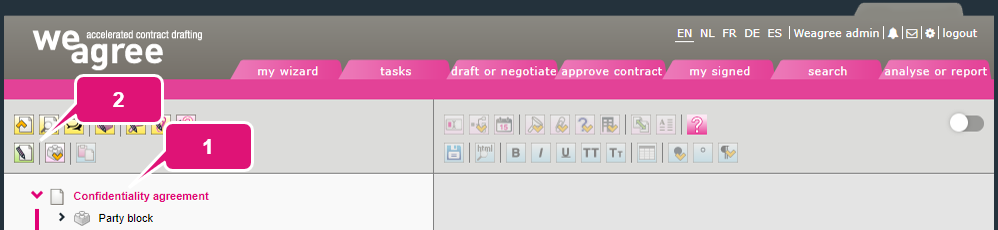
1. In the Template Creation Tool, click on the template name at the top of the outline.
2. Click Edit the template settings.
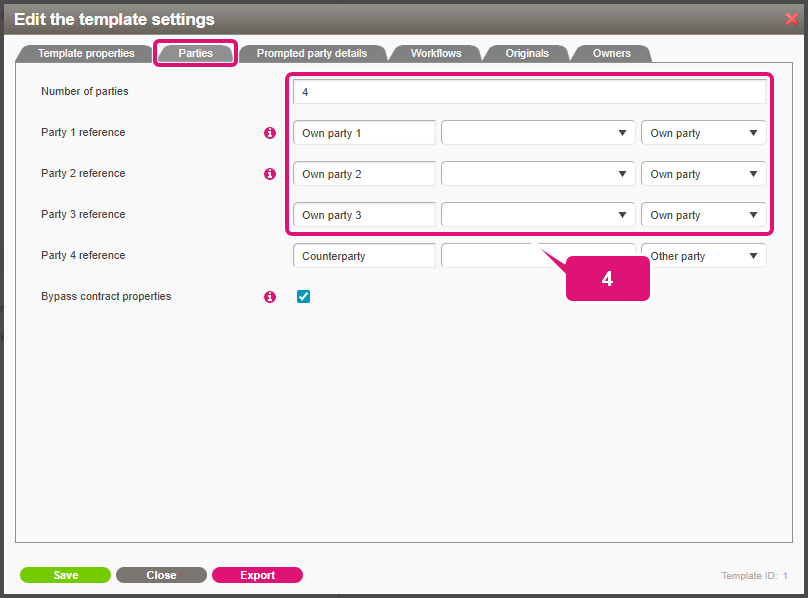
3. Open the Parties tab.
4. Create a separate party reference for each of the entities the user must be able to choose (ensure the Own party/Other party setting is correct for each).
Note: keep in mind that this means that each entity will be connected to a separate CRM tag. So if you have three ‘own parties’, you will not be using [weagreecrm.1.relation.name] for all of them, but [weagreecrm.1.relation.name] for the first, [weagreecrm.2.relation.name] for the second and [weagreecrm.3.relation.name] for the third.
5. Click Save.
6. Repeat the steps described under A above for each of the entities (note that you can click Save instead of Save & close to quickly pre-answer all the party questions).
7. Create the global choice question if you have not yet done so.
8. Set up the local choice trees and link them to the global question. Note the following:
a. For the party details (and probably for the signature blocks), create one option for each entity and ensure that each option contains the correct CRM (or [gq.Party]) tags.
b. If your global question is linked to a lookup table (for example because of variable address details in a header), each option in the local choice tree must exactly match the corresponding value of the designated lookup column. Choice options and lookup values are matched automatically, so any typo will prevent the choice tree from working correctly.
9. If applicable, add the global question’s tag to any headers or footers (for more information, click here).
