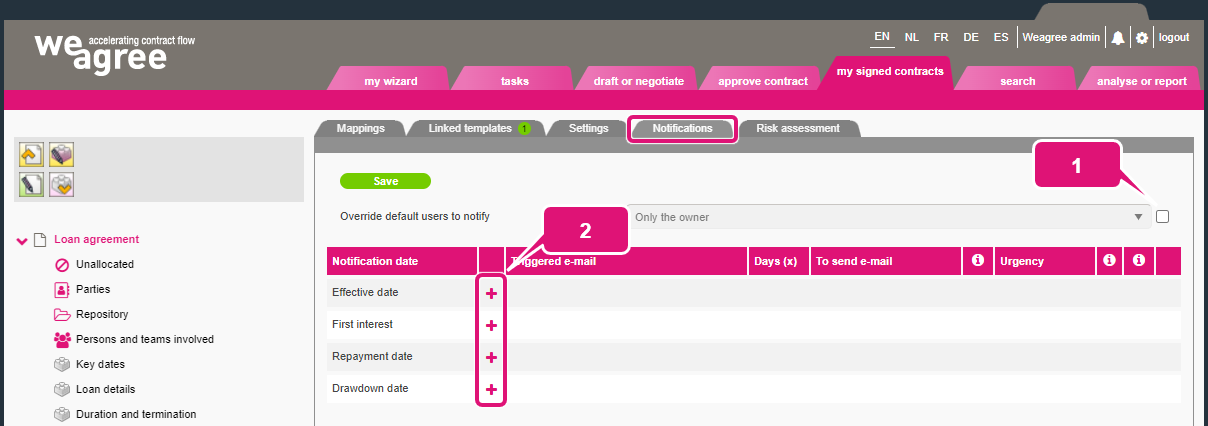
Depending on the date-fields in a contract sheet, you may create default triggers for e-mail notifications. When enabled, these CLM notification triggers will ensure that whoever manages a contract based on that contract sheet will receive a notification when defined conditions are met. You may add and edit such triggers on the Notifications subtab of your contract sheet.
1. Tick the Override default users to notify checkbox if this contract sheet’s notifications, by default, should not be sent only to the contract owner (i.e. the end-user to whom the managed contract is assigned). Alternatively, you may select All managers (i.e. all involved users with read-and-write rights) or All users (i.e. all involved users with read-only rights).
Note: to be clear, this applies only to users who are listed under Persons and teams involved on the managed contract. Other end-users, even those whose authorisations give them general access to the managed contract, will not receive any notifications for this contract.
2. Click the plus sign to add a notification trigger for any type of date.
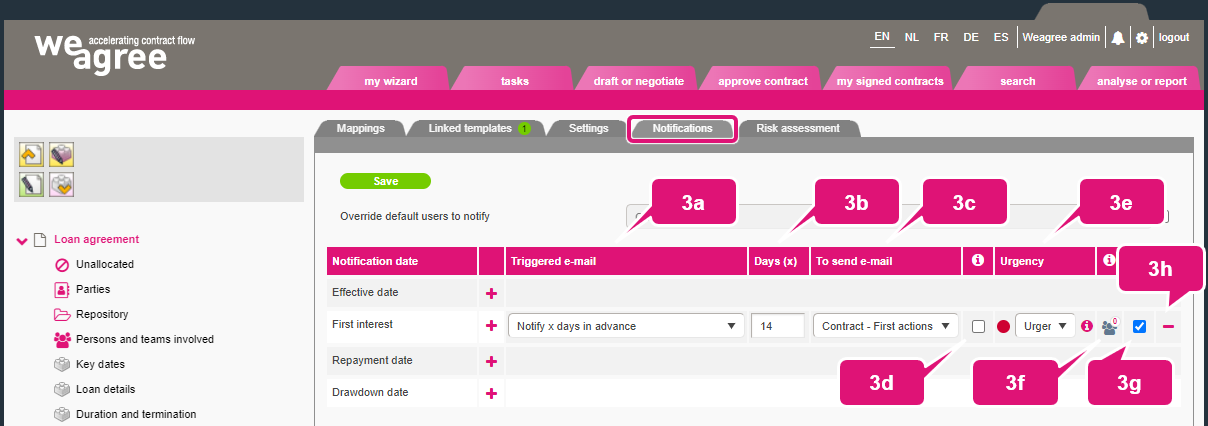
3. To configure a trigger, use the settings contained in the eight columns following the specified date (from left to right):
a. Triggered e-mail: this setting determines at what general point in time the e-mail notification will be sent: before, on or after the date specified in the entity’s or person’s corporate housekeeping.
b. Days (x): if the triggered e-mail notification will be sent before or after the specified date, use this setting to determine the precise moment (e.g. insert “30” to send a notification 30 days before or after the date).
c. To send e-mail: select the type of e-mail to be used for the notification. For more information, click here.
d. Create task when triggered: tick to make the Weagree Wizard automatically create a task when a notification is sent.
e. Urgency: when the e-mail notification is triggered, the contract will automatically change to the selected urgency status. This will be reflected on the My signed contracts page.
f. Additional users: click the icon to add additional users to notify by default. Otherwise, notifications will only be sent to the owner of the contract (i.e. the user to which the contract is currently assigned) as listed on the Persons and teams involved item of the managed contract’s sheet.
g. Enabled: tick or untick this checkbox to enable or disable the e-mail notification trigger.
h. Delete: click the minus sign to delete the e-mail notification trigger.
4. Click Save.
Note: it is highly recommended that you make use of automated notifications to prevent missing any deadlines, and that you add default triggers to each contract sheet.