When any e-signing solution such as DocuSign has been set up in the Weagree Wizard, e-signing signatories can be designated for any entity in the entity management. When a user initiates e-signing for a contract involving such an entity, they may choose from the list of designated signatories; and if there is only one available signatory, it will be selected automatically.
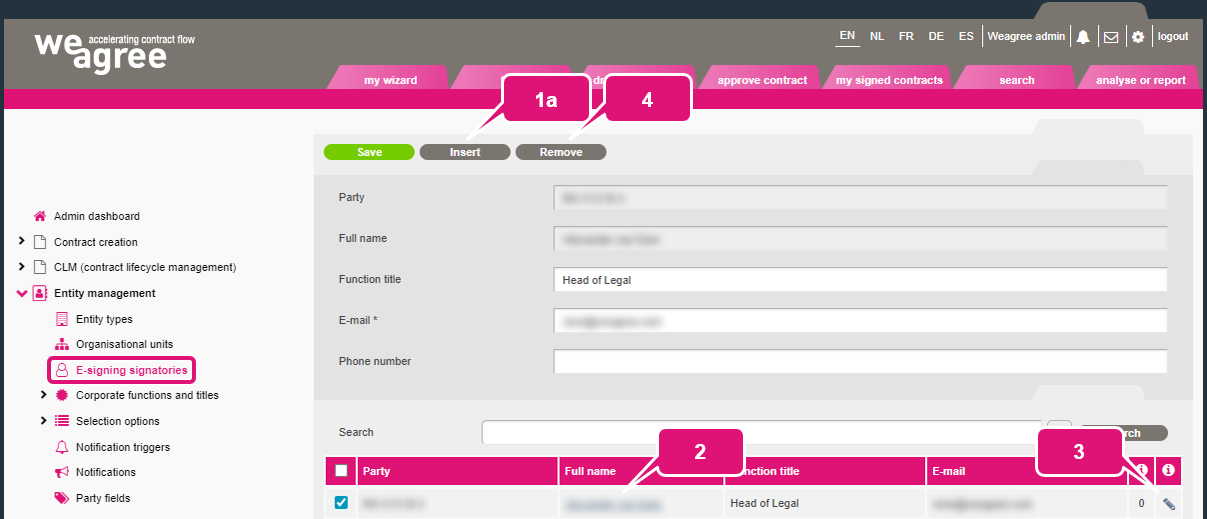
While persons (or legal entities, if they happen to be board members themselves) are designated as signatories from within the entity management itself, they can be managed from the Administrator page. Open the Entity management item and navigate to E-signing signatories.
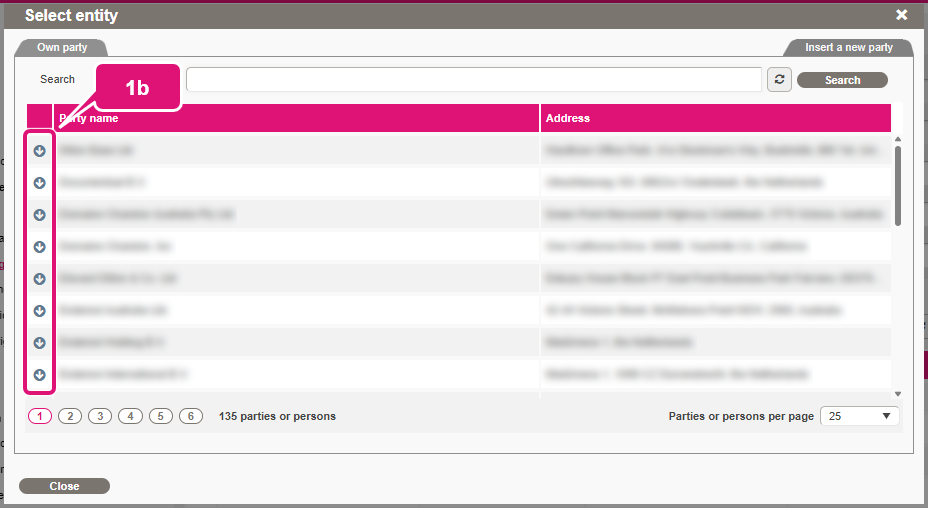
1. To add a new signatory:
a. Click Insert.
b. Select the entity for which the signatory will be added.
c. Select or insert the applicable board member or representative.
d. Enable E-signing authorised.
e. Click Save.
2. An existing signatory’s pertinent details can be edited by clicking on their name in the list.
3. Click the pen icon next to a signatory to view their entity management page.
4. Click Remove to revoke the signatory designation (this will not remove the individual or legal entity from the entity management altogether).
Note: any changes made on this page will be reflected in the entity management.