The Weagree Wizard’s entity management can be expanded with custom party fields. If the party database or corporate housekeeping does not accommodate certain data important to your organisation, you can create the required fields at will and place them where appropriate.
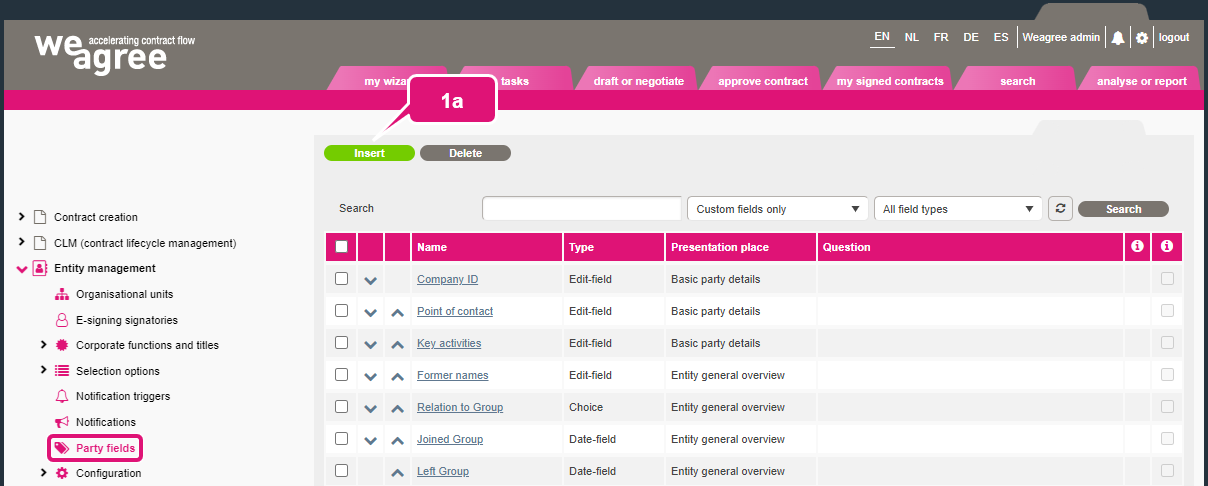
On the Administrator page, open the Entity management item and navigate to Party fields.
1. To create a new party field:
a. Click Insert. The pop-up Insert party field will appear.
b. Select the desired type of field.
c. Insert a name (label) for the field.
d. Depending on the selected field type, fill in the other fields.
Note 1: the fields Question and AI prompt and the checkbox Force a Q&A answer are currently not used and may be left blank.
Note 2: this pop-up is based on the one for configuring Q&A questions (and the one for CLM data fields). For more information on its operation, see the Q&A creation – basics videos in the Contract automation section of this knowledge base.
e. Optionally, change the field’s visibility.
Note: if the field will be relevant only to either organisations or individuals, you may choose to show it only in such cases. If a field should not be used at this time, but you do not want to lose any previously inserted data, you can also choose to hide it altogether from end-users.
f. Select the applicable location for the field.
g. Optionally, and insofar as multiple languages have been enabled for the Weagree Wizard, insert translations on the Translations tab.
Note: any text inserted on the General tab will act as a fallback. If an end-user switches the Weagree Wizard to a different language, but no translation has been provided, the fallback text will be displayed instead.
h. Click Insert.

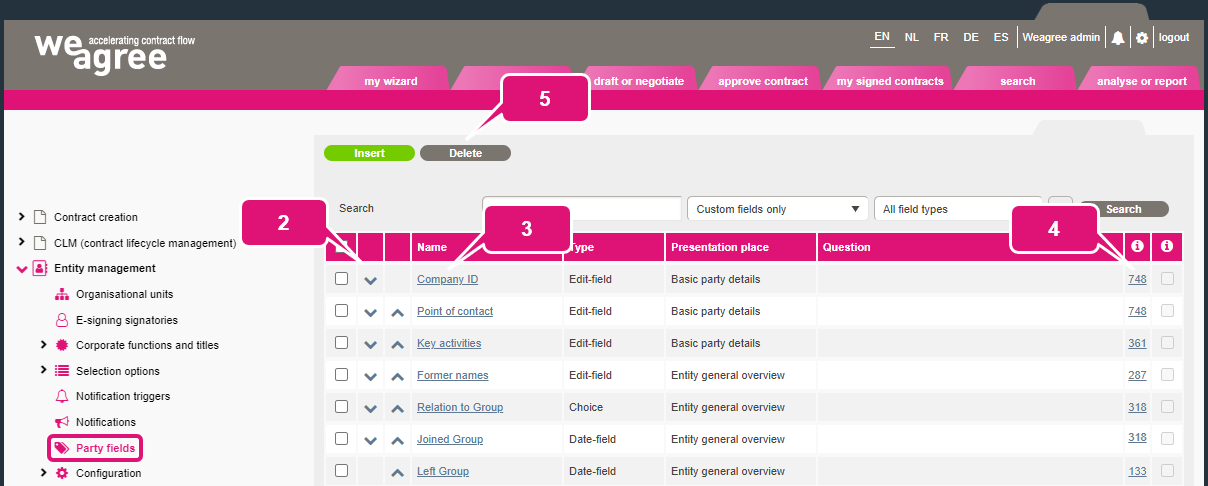
2. The order in which the party fields are listed can be changed by clicking the up and down arrows.
Note: the order is applied to fields in the same area of the entity management. For example, a field placed on the general overview of an entity listed between two fields placed in the basic party details will of course not actually appear between those two fields for the end-user.
3. An existing party field can be edited by clicking on its name in the list.
4. The number of entities where the field is actually in use appears in the table. Click the number to see a list of the applicable entities.
5. Click Delete to remove any selected party field.