


A global question can shape a document in any number of ways and places, making it one of the most effective template-building tools in the Weagree Wizard. They can take on the form of any ‘local’ question, so as you might expect they are very similar in creation and use to the question types previously explained in this Knowledge base. There are also significant differences, however.
TABLE OF CONTENTS
A. Introduction
B. Organising global questions
C. Creating global edit, date and country fields
D. Creating global choice fields
E. Using global questions – tagging
F. Global choice field tags
G. Using global questions – linking
H. Miscellaneous global questions
I. Ordering global questions
J. Pre-answered global questions
A. INTRODUCTION
Contrary to ‘local’ questions, a single global question can be reused throughout a template: answering it once during the questionnaire (Q&A) will then affect the document wherever it appears. This enables, for example, repeated use of a particular name or term, calculations in different places with one or more previously entered numbers and the inclusion (or exclusion) of multiple building blocks or contract clauses.
Global questions are essential for key variables that have a major overall effect on your document, but can also prove very useful for parameters that only produce small – but distributed – changes. Like local questions, they can easily be combined to create complex mechanisms of follow-up questions. A few global questions can have a huge impact on whatever document the user is drafting. They make it possible to convert multiple variants of any type of contract into a single, unified template.
Furthermore, while local questions are created and managed within individual template components, global questions are library items like definitions or global building blocks. Because they ultimately exist independently of any single template, they can be used in any number of templates and other library items at the same time. This is not only helpful for certain generic variables or key questions common to multiple templates, but also when certain questions in a template must affect any incorporated library item (or vice versa) – for instance, when a form attached as a schedule should be tailored to the individual document.
Global questions greatly improve the coherency, versatility and quality of your templates, and help to streamline Q&As and minimise the odds of user error by reducing the necessary amount of input. Their use is very highly recommended.
B. ORGANISING GLOBAL QUESTIONS
While the exact creation process and use of any specific global question are dependent on the question type, all global questions are stored in the same library and therefore organised in the same manner.
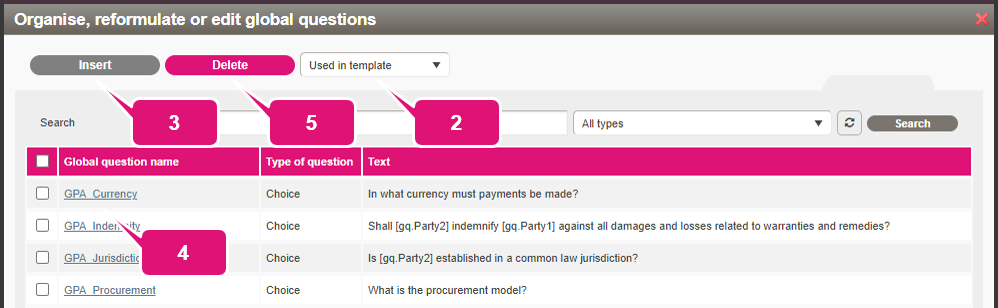
1. Click Organise, reformulate or edit global questions. A pop-up will appear.

2. By default, only the global questions actually used within the template (including any clause library items, definitions and schedules and annexes used in the template) are displayed. To show all global questions in the library, select All contract types from the top dropdown menu.
3. To create a new global question, click Insert. The next steps are explained in the sections below.
4. To edit an existing global question, click its name. After completing your changes, click Save.
Note: although you can change the question type (e.g. from an editable field to a date field), this may cause complications. If you need a different type, it is generally best to create an entirely new question instead. See the following sections for details.
5. To delete any selected global questions, click Delete.
Note: be careful when deleting global questions, as they might be used in multiple templates. It is also recommended that you only delete any global question after removing (and compensating for) every instance of it from whichever template you are working on, to avoid parts of the Q&A breaking and the appearance of non-functional tags in your document.
C. CREATING GLOBAL EDIT, DATE AND COUNTRY FIELDS
The creation of any global edit, date or country field is very similar to the creation of a local field of that type. As described in section B above, you first need to open the Organise, reformulate or edit global questions pop-up and then click Insert.
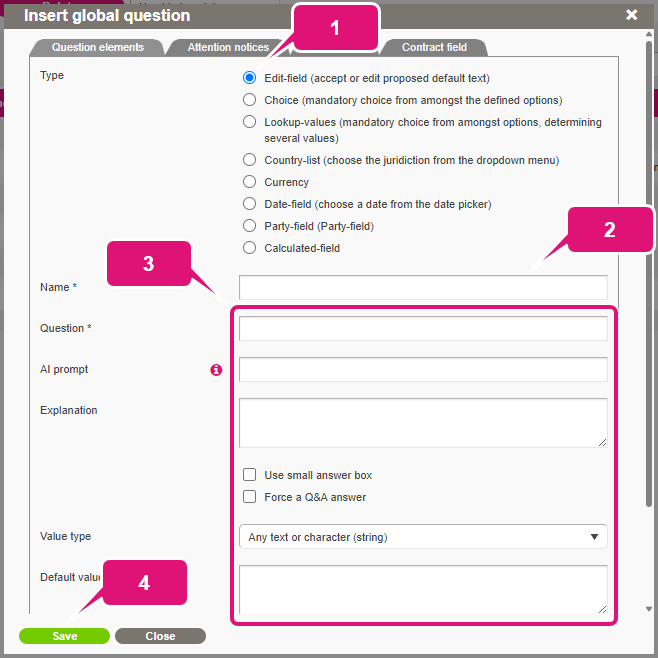
1. Select the type of field required. The fields below will change accordingly.
2. Enter a name. This is the name used to identify the global question in the library and tags used in templates.
Note 1: it is advisable to add a clear prefix to the name if the global question is specific to the template or to a particular type of document. An acronym of the document title will typically suffice (e.g. DA for a Distribution agreement, so the full unique name of a global question about exclusivity might be “DA_Exclusivity”).
Note 2: a global question’s name can be changed later. Be aware however, that you will need to manually update all the tags in the template’s body text (other library items included). The Template Creation Tool’s search-and-replace function is very helpful for this. For more information, click here.
3. Fill in the other fields as you would for a local question (see the respective articles on edit, date and country fields for details).
4. Click Save.
D. CREATING GLOBAL CHOICE FIELDS
Global choice fields do not exist as choice elements in a template component, like local choice fields do. Being part of the same library as any other global question, their choice answers are instead incorporated into the same configuration screen as the other field settings of the Organise, reformulate or edit global questions pop-up. The same principles apply, however.
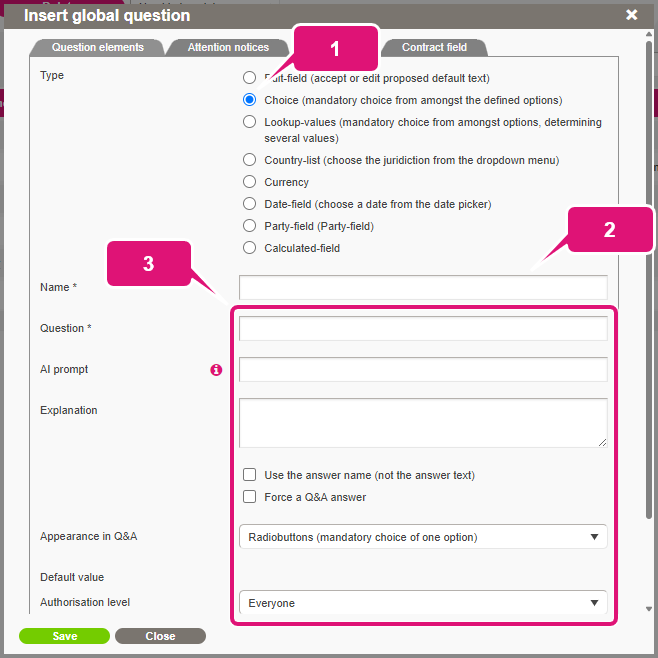
1. Select Choice (mandatory choice from amongst the defined options).
2. Enter a name (compare step 2 of section C above).
3. Fill in the other fields as you would for a local choice field (for details, click here).
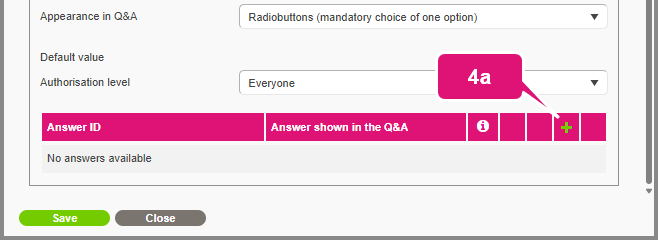
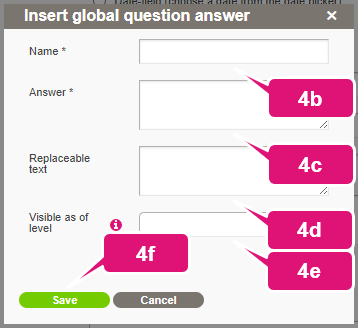
4. To add a choice answer:
a. Click the plus icon (scroll down). Another pop-up will appear.
b. Enter a name. This is the name used to identify the choice answer in the database.
Note: no special rules apply, nor is the use of prefixes advised as the choice answer will be tied only to this global question. You may choose to use the same value here as for the next field.
c. Enter the text of the choice answer. This is what the user will see in the Q&A.
d. Optionally, fill in Replaceable text. This will replace the global question tag when it is used in any template component’s body text and is directly analogous to the body text of a local choice answer. The use of the Replaceable text field is explained further under section F below.
e. Optionally, change Visible as of level if you want to hide the choice answer from users with a lower authorisation level.
f. Click Save.
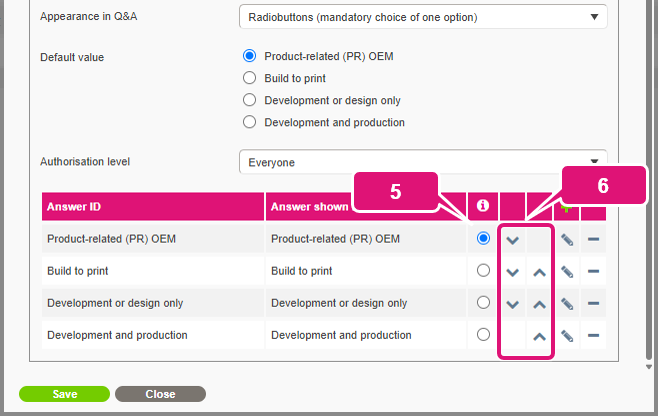
5. To choose or change a default answer, select the applicable answer (or answers, in the case of a checkbox or multi-select dropdown questions).
6. To change the order of the choice answers, click the up and down arrows.
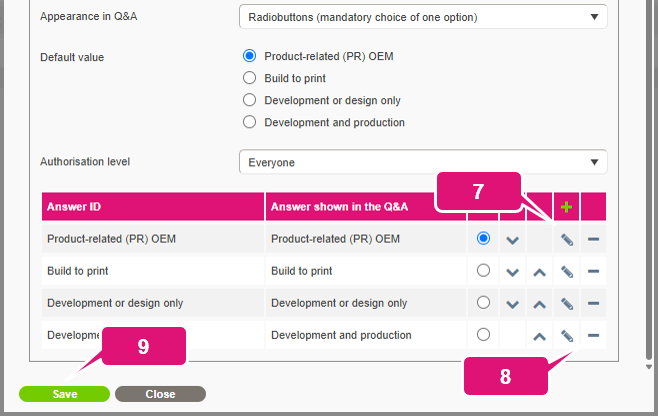
7. To edit a choice answer, click its pen icon.
8. To delete a choice answer, click the minus icon.
9. Click Save.
E. USING GLOBAL QUESTIONS – TAGGING
Like local questions, global questions can be triggered by adding their tags to a template component’s body text. Just like local question tags, they act as placeholders for the user’s input.
1. Select the text that must be replaced by the user’s input (or position the cursor where it must be inserted).
2. Click Insert the text from a Global Question.
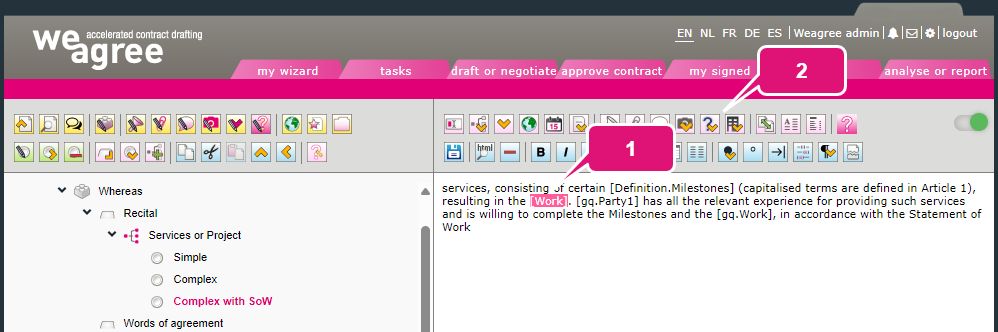
3. Select the applicable global question.
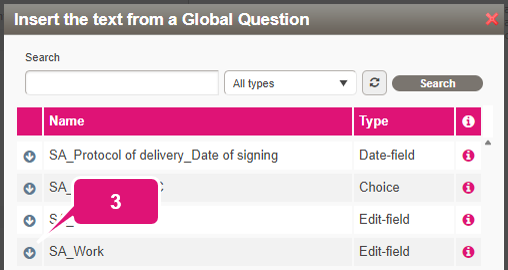
4. Click Save the changes made (or press Ctrl+S).
Note: much like party tags (see here), it is also possible to use global question tags in other (global) questions. They can be incorporated into the Question field as well as choice answer names.
F. GLOBAL CHOICE FIELD TAGS
Global editable, date and country field tags are obviously replaced by the value the user types in or selects. In the case of global choice fields, however, this may be different.
The text that is inserted via a global choice field’s tag depends on the ‘replaceable text’ – if any. If the choice answer’s Replaceable text field was left blank, nothing is inserted at all. When there is a replaceable text, it is always inserted for that choice answer wherever the global question tag is used. The replaceable text can be completely different from the text of the choice answer. As such, the Replaceable text field may be regarded as a ‘global’ version of the local choice answer’s body text. There are two important caveats, though:
1. The Replaceable text field can only be used to add text, not entire contract clauses.
2. Because it does not allow for differentiation, the Replaceable text field is generally not suitable for clause-specific text insertion.
Still, one important difference to – and advantage over – local question types is that the Replaceable text field accepts the use of other tags. This means that you can set up a choice answer to immediately produce a follow-up question, effectively injecting variability into the field. Moreover, it can be used to more efficiently organise your Q&A and template, allowing you to effectively compress multiple questions into a single tag where you would normally use one or more choice elements.
A simple scenario might be the global version of a choice element with an Other… option that produces a follow-up editable field question, where one choice answer will contain the tag of a global editable field so the user can freely type out an answer. Another might be that each choice answer’s Replaceable text field references another global choice field, so that an entirely different question will appear after the user selects an answer.
Use of the Replaceable text field can be highly efficient, but be sure to figure out in what ways you will need to use the global question before committing.
G. USING GLOBAL QUESTIONS – LINKING
In addition to tagging global choice fields in template components, they can also be directly linked to template components. This can be used for three different purposes: to make a clause inclusion dependent on a global question, to link local choice answers to a global question’s choice answers and to make a local choice answer’s visibility dependent on a global question (i.e. whether the choice answer will appear in the Q&A depends on the answer to the linked global question).
1. To create a global clause inclusion:
a. Create a regular, local clause inclusion as described here.
b. With the (global) building block or contract clause selected, click Make clause inclusion dependent on the answer to a global question. A pop-up will appear.
c. Select the global question.
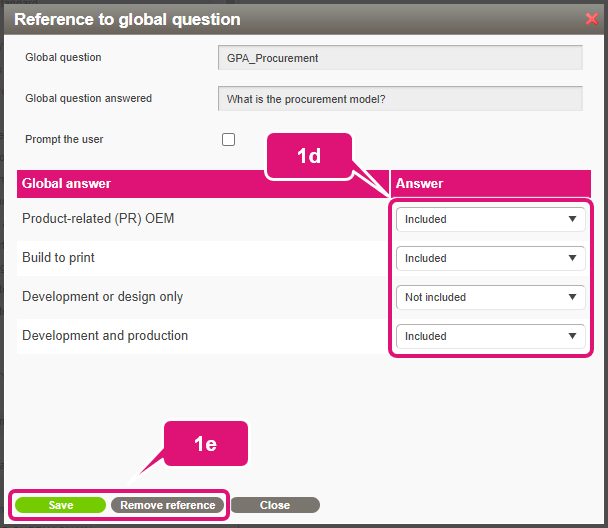
d. Match each choice answer of the global question to the appropriate effect (inclusion or exclusion).
Note: you may match multiple global answers to the same effect.
e. Click Save or, if you want to unlink the global question again, Remove reference.
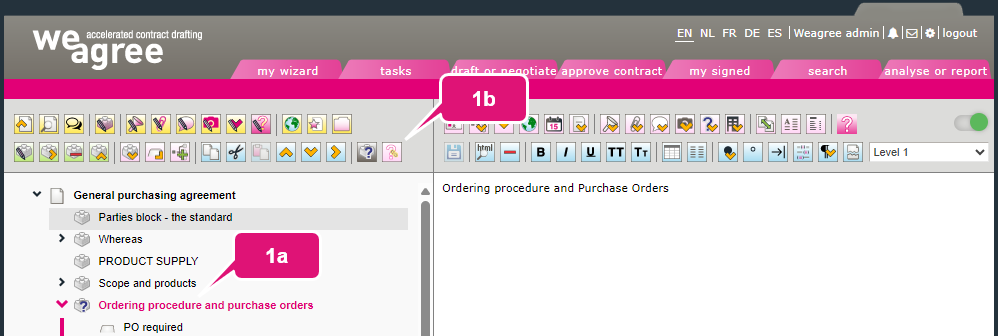
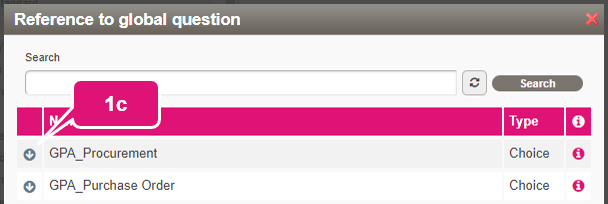
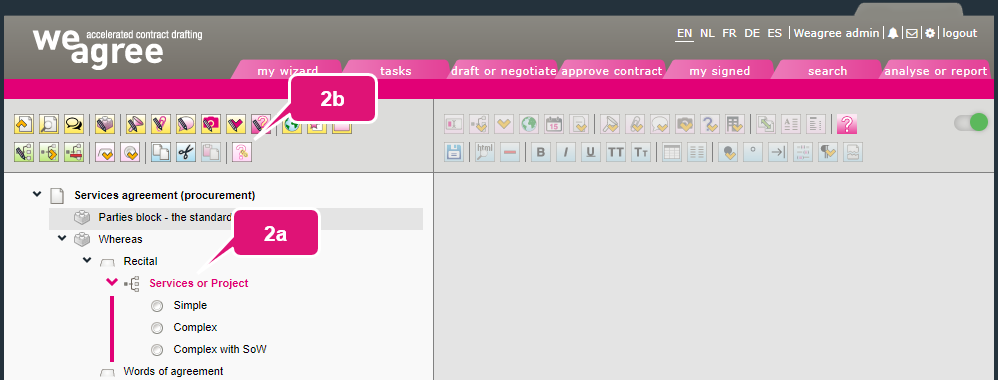
2. To link a global question to a local choice element:
a. Select the choice element.
b. Click Make choice dependent on the answer to a global question. A pop-up will appear.
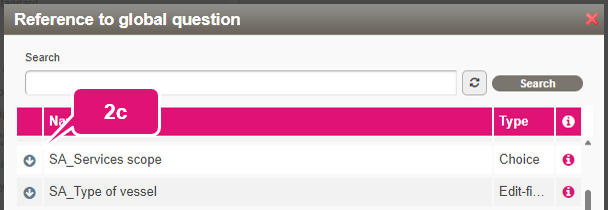
c. Select the global question.
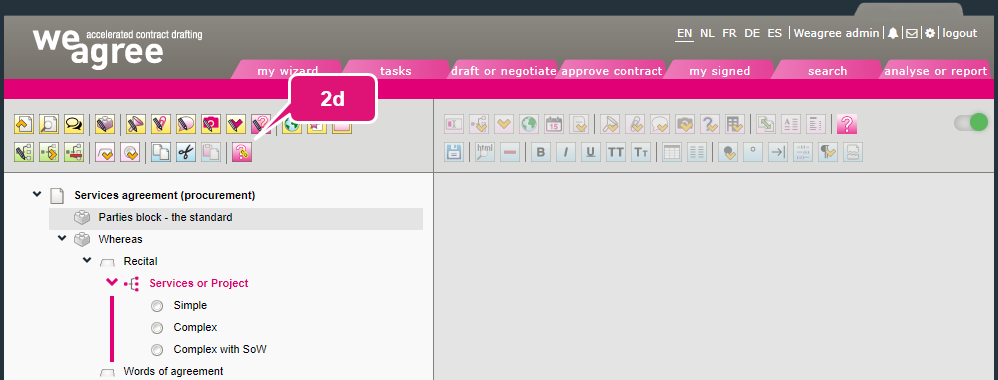
d. Click Manage link with global question. A pop-up will appear.
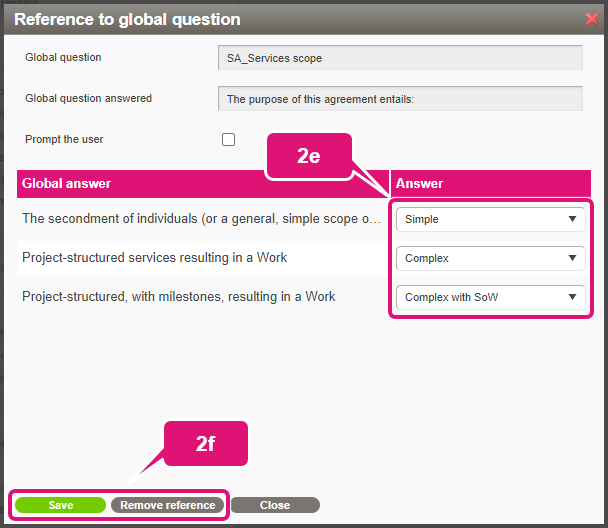
e. Match each choice answer of the global question to the appropriate local choice answer.
Note: you may match multiple global answers to the same local choice answer. You may also leave any dropdown blank, in which case selecting the corresponding global answer will not have any effect here (but it may of course still be linked to answers of other choice elements).
f. Click Save or, if you want to unlink the global question again, click Remove reference.
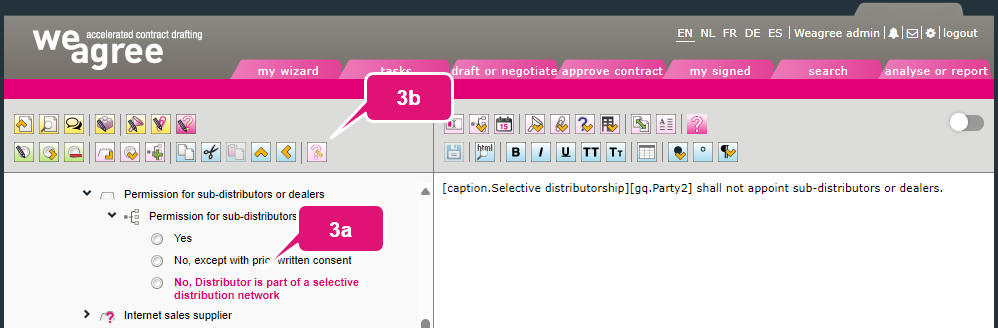
3. To make a local choice answer’s visibility dependent on a global question:
a. Select the choice answer.
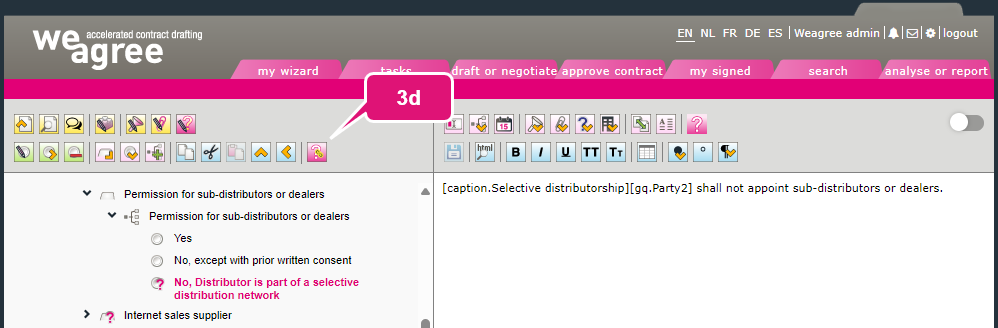
b. Click Make choice answer dependent on the answer to a global question. A pop-up will appear.
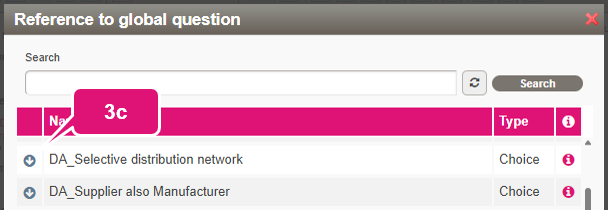
c. Select the global question.
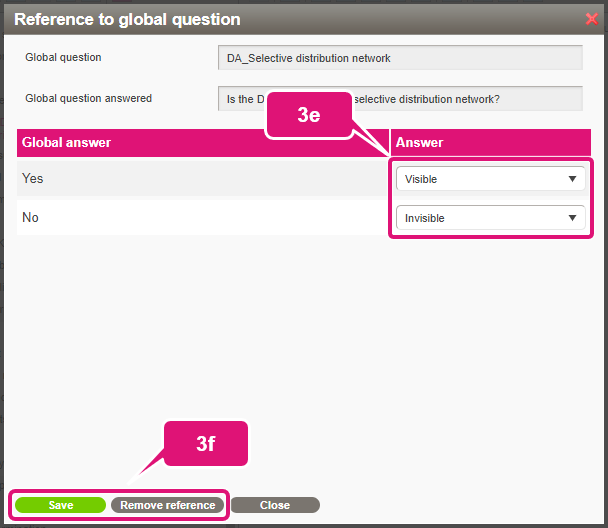
d. Click Manage link with global question. A pop-up will appear.
e. Match each choice answer of the global question to the appropriate effect (visible or invisible).
Note: you may match multiple global answers to the same effect.
e. Click Save or, if you want to unlink, the global question again, Remove reference.
H. MISCELLANEOUS GLOBAL QUESTIONS
A few more variants of global questions may be created. The most important of these is the lookup-list type (covered here).
Available also is a predefined currency global question, which functions in much the same way as the predefined country field. However, use of the currency lookup list (provided with each Weagree Wizard portal) is generally preferred as it affords greater control of the text output.
A global calculated field is not actually a question, but rather a formula (the ‘expression’) consisting of two or more global questions that produce a numerical or date(-related) value. This is type of field is primarily intended for the Weagree Wizard’s contract lifecycle management (CLM), but can also be used in templates if the same calculation must be performed in multiple places. Usually, however, a local calculation will suffice (and its formula can of course be copied to other template components). Click here for more information on regular calculations and here for more information in date calculations.
Likewise, the global party field does not actually produce a question. It is triggered by the [gq.PartyX] tag and is implicit in the Weagree Wizard. For practical purposes, this option in the global question settings may be ignored entirely.
I. ORDERING GLOBAL QUESTIONS
By default, global questions are all collected on the first page of the Q&A (inserted into the Q&A before the first building block). They appear in the order in which they are triggered within the template and only when they get triggered. Global questions may themselves be follow-up questions, which implies that sometimes they will not be triggered – appear in the Q&A – at all.
It is possible to manipulate the order in which or where global questions appear. Any particular global question may be configured to be shown on the Q&A page of the building block where it is (first) triggered, rather than the very first page of the Q&A. Doing so may be advisable if otherwise the question would be missing important context, or if the global question is itself a conditional follow-up question (meaning it might become visible on the first Q&A page while the user has already advanced to a subsequent page). There are also methods of deliberately moving global questions around on any Q&A page to make questions progress more logically and consistently. Stringing global questions together in a specific way can enforce a precise order of questions, which helps the end user. For more information, click here and here.
J. PRE-ANSWERED GLOBAL QUESTIONS
In some cases, a global question should be ‘pre-answered’ by the administrator. This may apply when two or more templates share library components or house styles, but the output should be different on the basis of a preliminary question that is redundant to the user. It may also be used to define certain metadata of a contract (such as its language or whether it was created in the Weagree Wizard) that is irrelevant to the Q&A, but would be useful fot the CLM. Global questions set up for such purposes are answered only in the Template Creation Tool, never appearing in the Q&A. For more information, click here.
A similar mechanism exists for party selection. For example, if your organisation only consists of one legal entity, making the user manually select it for every contract would feel redundant. A more sensible approach would be to preconfigure the template to automatically select that legal entity. For more information, click here.
