


The Weagree Wizard uses a special tag for captions, the short headings or lead-ins that indicate the subject or capture the essence of a clause. The format of this tag is very simple: [caption.Clause heading]. While it is also possible in the Template Creation Tool to manually format text as a caption, the advantages of using caption tags is twofold:
- A caption’s formatting is part of the house style used by the template. If changes to the house style dictate changes to captions as well, you only need to implement them once – in the house style settings – instead of everywhere a caption is used.
- The house style settings also permit disabling caption tags. This will not remove them, but simply ignore them when creating a document. Again, this only requires a single change instead of manually removing every caption in every template using that house style.
For more information on caption settings, click here.
Caption tags are automatically added to contract clauses that are directly beneath (‘children’ of) a building block, which by default get the Level 2 style (for more information on building blocks, contract clauses and styling, click here and here, respectively). You may also create them manually, however.
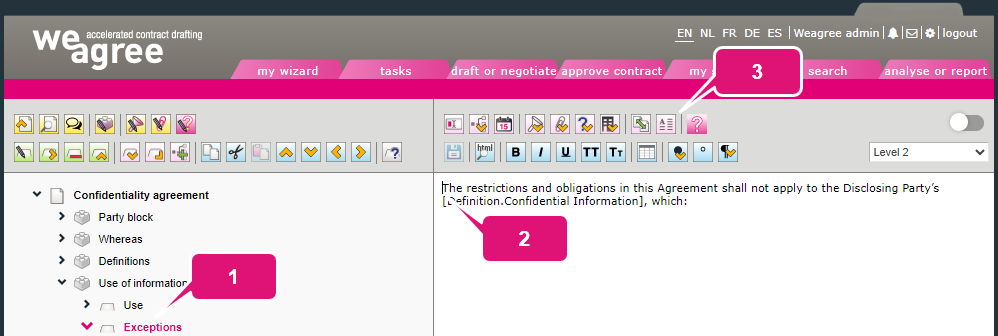
1. Locate the contract clause where the caption must be inserted.
2. Ensure the cursor is positioned directly before the first letter in the body text.
Note: do not place either a space or paragraph break ([EOL] tag) between the caption tag and the first letter. A space or paragraph break is automatically inserted depending on the caption settings in the house style.
3. Click Insert a caption (clause header).
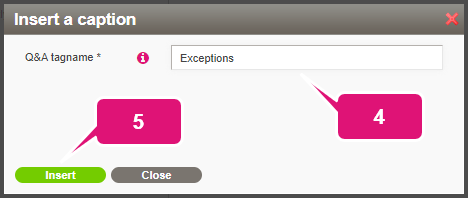
4. Confirm or edit the caption name. By default, it matches the name of the contract clause.
5. Click Insert.
6. Click Save the changes made (or press Ctrl+S).
Note: you can manually edit a caption tag’s name if needed, but you should never apply any manual formatting to it.
