The Weagree Wizard’s corporate housekeeping contains numerous selection menus. Such entity management dropdowns can be fully customised to your organisation’s needs and preferences. On the Administrator page, a distinction is made between corporate functions and titles and other (mainly document-related) selection options.
TABLE OF CONTENTS
A. Corporate functions and titles
B. Selection options
A. CORPORATE FUNCTIONS AND TITLES
There are a few customisable dropdowns for persons (and in some cases, entities) listed in the corporate housekeeping as managing directors, supervisory directors or representatives. On the Administrator page, open the Entity management item and navigate to Corporate functions and titles.
The subitem Functional statuses may be used as a standard, generic list of high-level positions (e.g. CEO, CFO, Chairman). In the corporate housekeeping, this is an optional field; there will also be a plain text field where a custom title may be inserted. In cases where no direct translation of a certain position is available, or the exact title may vary from organisation to organisation, the Functional status can be used as a generic indicator of the type of position.
The subitem Authorisations is mandatory and indicates to what extent (if any) someone is permitted to represent the entity.
Organising the available options works the same way for either subitem.
1. To create a new option:
a. Click Insert.
b. Fill in the top field (Functional status or Authorisation, as the case may be).
c. Optionally, and insofar as multiple languages have been enabled for the Weagree Wizard, insert translations.
Note: the text inserted in the top field will act as a fallback. If an end-user switches the Weagree Wizard to a different language, but no translation for the selected option has been provided, the fallback text will be displayed instead.
d. Click Save.
2. An existing option can be edited by clicking on its name in the list.
3. Click Delete to remove any selected option.

B. SELECTION OPTIONS
Various dropdowns in relation to a variety of corporate housekeeping matters may be customised. On the Administrator page, open the Entity management item and navigate to Selection options. There you will find the following subitems:
- Type of locations: used in the Addresses subtab of the corporate housekeeping overview page, to differentiate between such places as headquarters, offices, factories and so on.
- Resolution decisions: used as metadata for files stored under Resolutions and minutes, indicating what sorts of decisions a resolution covers.
- Class of shares: used on Shareholders and subsidiaries for each shareholder/subsidiary relation.
- Type of constitutional documents: used to specify the types of files stored under Constitutional documents.
- Type of resolution documents: used to specify the types of files stored under Resolutions and minutes.
- Type of certificate or filing documents: used to specify the types of files stored under Financials, certificates and filings > Certificates and filings.
- Type of financial documents: used to specify the types of files stored under Financials, certificates and filings > Financial accounts.
- Type of personal documents: used to specify the types of files stored under the Personal documents subtab of an individual’s corporate housekeeping page.
Organising the available options works the same way for all subitems, with one exception for the document types.
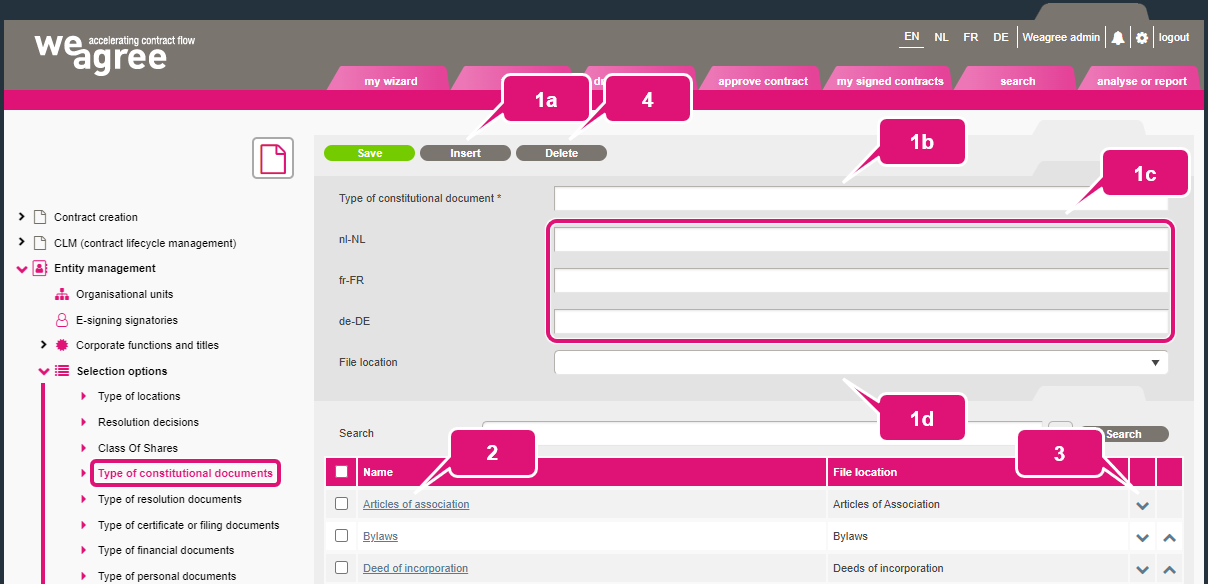
1. To create a new option:
a. Click Insert.
b. Fill in the top field.
c. Optionally, and insofar as multiple languages have been enabled for the Weagree Wizard, insert translations.
Note: the text inserted in the top field will act as a fallback. If an end-user switches the Weagree Wizard to a different language, but no translation for the selected option has been given, the fallback text will be displayed in the corporate housekeeping.
d. Optionally, in the case of document types, select the applicable option from the File location dropdown.
Note: this only applies insofar as an external storage medium such as SharePoint is used. For more information on storing files externally and this dropdown field, click here.
e. Click Save.
2. An existing option can be edited by clicking on its name in the list.
3. The order in which the options are listed can be changed by clicking the up and down arrows.
Note: the listing order is purely cosmetic, but will match the appearance of the dropdowns in the corporate housekeeping. Depending on their number and composition, different arrangements (alphabetically, by importance, by common denominator, etc.) may be practical.
4. Click Delete to remove any selected option.