Country fields are dropdown menus that make it easy for the user to choose a jurisdiction in the questionnaire (Q&A), for example to indicate the law or territory applicable to the contract. Although they resemble choice field dropdowns, unlike an actual choice field, there is no need to create a choice element with an exhaustive list of answers. The country field uses a premade list of jurisdictions, including the individual US states, Canadian provinces and Australian states and territories.
Note: if you need a limited or otherwise customised list of jurisdictions for any particular contract, consider using lookup lists instead. Lookup lists also permit the selection of multiple options in one dropdown menu. For more information, click here.
TABLE OF CONTENTS
A. Creating a country field
B. Optional and advanced settings
C. Editing a country field
A. CREATING A COUNTRY FIELD
Country fields use the tag format [country.Name]. The tag will be replaced by the jurisdiction the user selects.
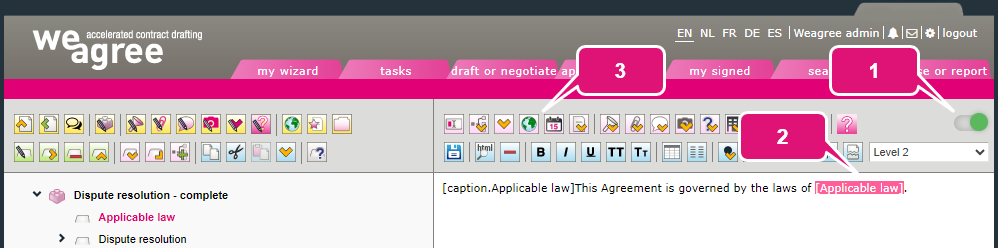
1. Enable Show advanced vs. all basic functionalities.
2. Select the text that must be replaced by the selected jurisdiction (or position the cursor where it must be inserted).
3. Click Insert a country field. A pop-up will appear.
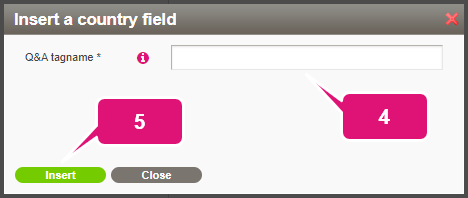
4. Enter a name for the tag. You may use spaces. A short, descriptive one (e.g. Territory or Applicable law) is recommended; avoid putting in actual questions or answers.
5. Click Insert. Another pop-up will appear.
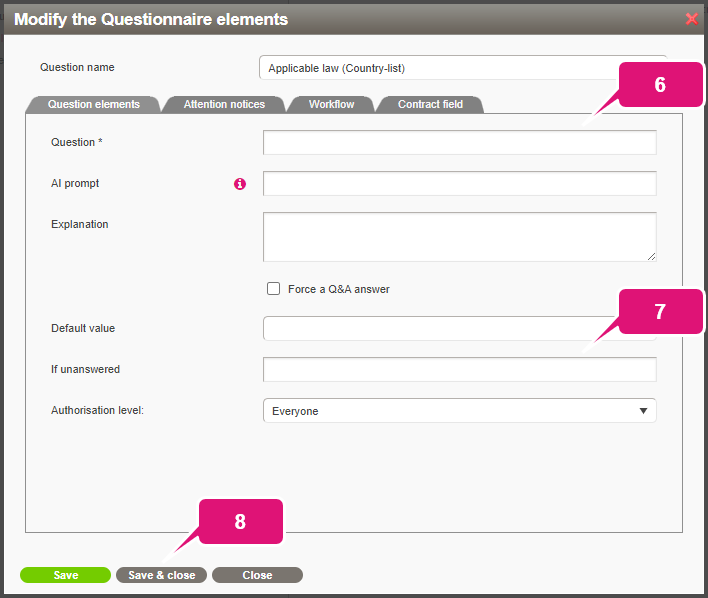
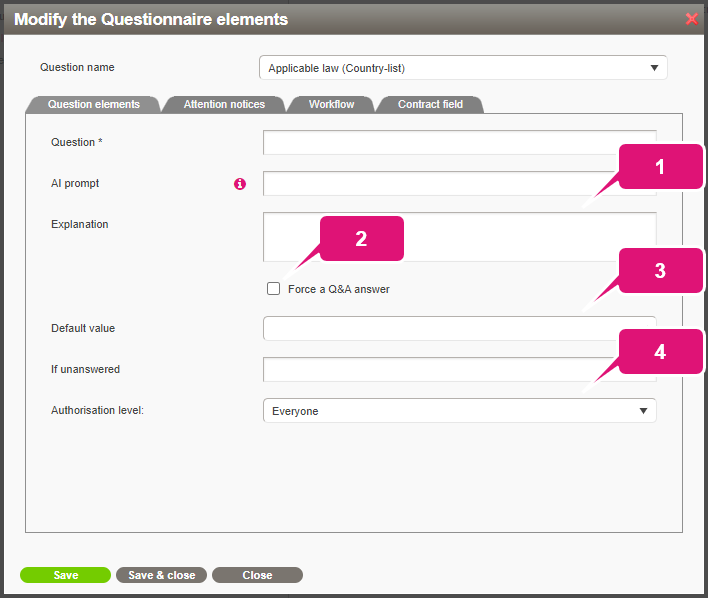
6. Formulate the question. This will be shown to the user in the Q&A.
7. Enter an If unanswered placeholder. This placeholder will appear in the Q&A’s WYSIWYG view (‘underwater screen’) and generated document if no other answer has been provided.
Note: using square brackets for the placeholder (e.g. “[PLACEHOLDER]”) is usually practical, as you can easily search for those in the generated document. To add a ‘blob’, use [[*]] with double brackets.
8. Click Save & close.
9. Click Save the changes made (or press Ctrl+S).
B. OPTIONAL AND ADVANCED SETTINGS
When creating or editing (see section C below) a country field, you may also want to consider the following settings.
1. Enter an explanation to provide user guidance for answering the question. In the Q&A, a small warning icon will be displayed to the right of the question. The icon will have the explanation as its tooltip.
2. Enable Force a Q&A answer if this question must be answered before the user may generate a document.
Note: this will not visually change the Q&A. Consider adding an explanation or attention notice – see below – to alert the user to this field’s mandatory nature.
3. Select a default value if a particular jurisdiction will usually be applicable. It will be automatically selected at the start of the Q&A for the user to double-check and change if necessary.
4. Change the authorisation level if the question should be hidden from certain users. This may be indicated for sensitive or complex matters that not every user is or should be able to determine. For more information about authorisation levels, click here.
Note: be aware that if a question is hidden this way, it will still be taken into account when generating a document. It is therefore highly recommended to at least fill in the If unanswered field (so that a senior member will be able to easily find and correct this variable in the generated document). If possible, however, provide a default value so that a generally acceptable answer will always appear in the document.
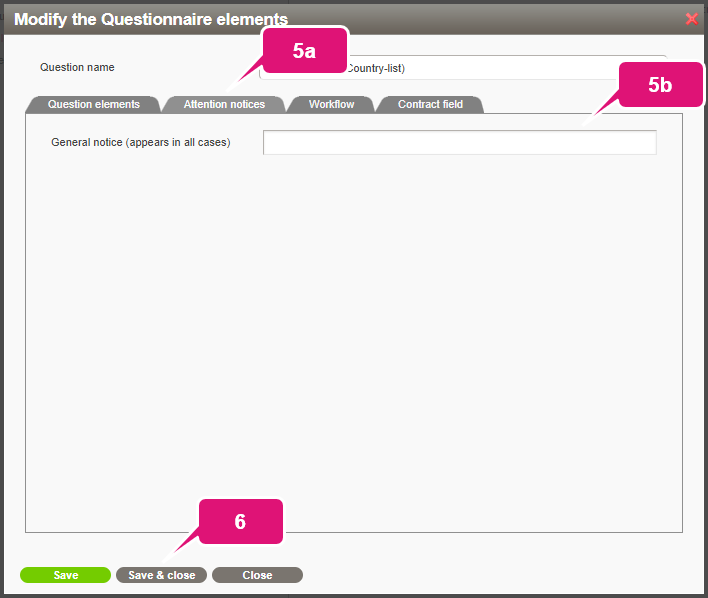
5. Add an attention notice (bold, magenta text displayed beneath the question during the Q&A) for especially important explanatory information:
a. Open the Attention notices subtab.
b. Enter the attention notice.
Note: if Force a Q&A answer has been enabled, it is often a good idea to add an attention notice pointing out that this field is mandatory. This will help prevent confusion at the end of the Q&A and make the field easier to find again if it is initially skipped for any reason.
6. Click Save & close.
C. EDITING A COUNTRY FIELD
Once created, all aspects of a country field except for its tag name can be edited.
1. Select the template component containing the country field.
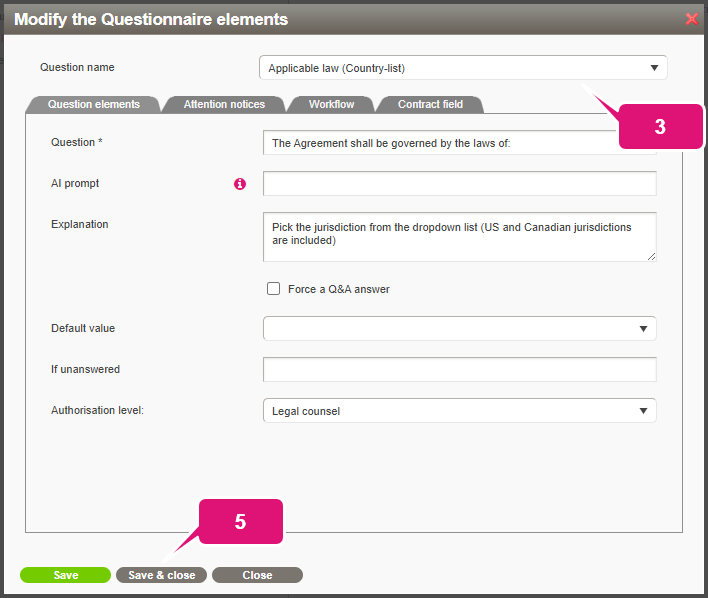
2. Click Modify the questionnaire elements (question formation, default answer or explanation). A pop-up will appear.
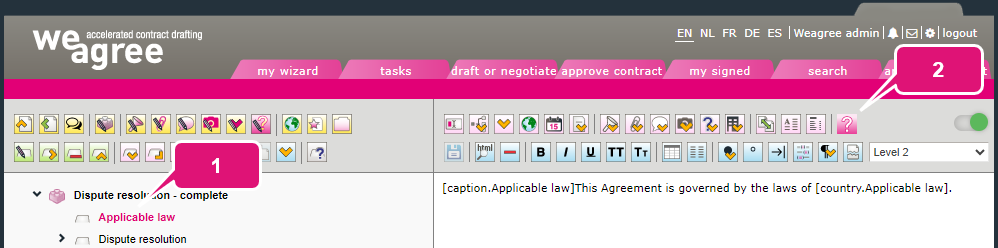
3. Select the applicable question (if the template component contains more than one).
4. Make the necessary changes.
5. Click Save & close (or Save if you want to edit another question in the same template component).