The answers to global questions can be preselected for a template. Such pre-answered questions will be hidden in the questionnaire from all users. This can be very useful when working with the Weagree Wizard’s library components or for generating metadata.
TABLE OF CONTENTS
A. Use
B. Pre-answering a question
A. USE
Pre-answering a global question means deciding ‘on behalf of the user’ which answer applies to the template. Because pre-answering a question means it will not appear in the questionnaire, the answer will be the same for every contract created with the template. Only an administrator can change the answer again, or make the question no longer pre-answered at all so that it will become visible in the questionnaire.
Pre-answering a global question is therefore fundamentally different from selecting a default answer. A question with a default answer will still show up in the questionnaire and users will still be able to change the answer.
If the global question only appears in a single template, there is no need to pre-answer it. Pre-answering only becomes useful when that global question is used in library components (global building blocks, definitions, schedules, etc.), which themselves may be added to any number of templates. This can help reduce the number of library components and make it easier to manage any changes. It can also be used to tell the Weagree Wizard’s CLM something about a contract that the regular questionnaire does not. In all cases, the point is to avoid unnecessarily burdening the user with questions.
Here are a few example use cases:
- inserting a version number or date into the contract
- a definition of Force Majeure with both customer-friendly and provider-friendly variants
- a global confidentiality clause with both short and long form variants
- a schedule with multiple translations of the general terms and conditions
- a CLM field identifying the language of the contract
- a CLM field identifying whether the contract was created in the Weagree Wizard (as opposed to being imported)
B. PRE-ANSWERING A QUESTION
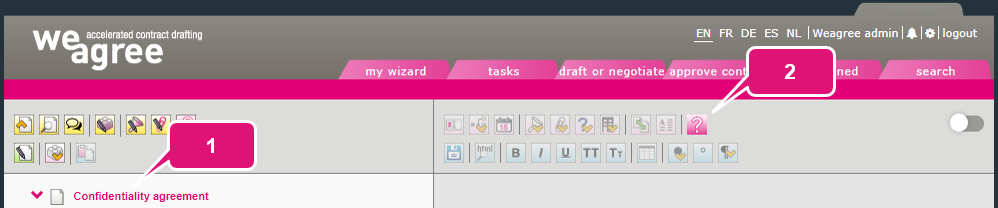
1. In the Template Creation Tool, click on the template name at the top of the outline.
2. Click Modify the Questionnaire elements (question formulation, default answer or explanation)
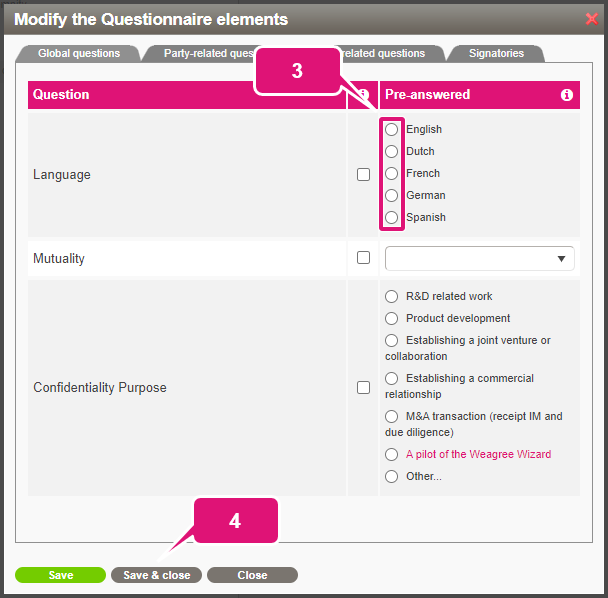
3. Select or fill in the applicable answer.
4. Click Save & close.
Note: if you deselect or erase the answer again, this resets the question and it will become visible in the questionnaire.