By default, certain basic fields will be displayed on each managed contract’s overview page. Such contract sheet configuration is done partly in general and partly per contract sheet.
Note: although contract sheets are primarily intended for managing contracts in the CLM, they are also used for contracts imported via the Weagree Wizard’s Draft or negotiate page.
TABLE OF CONTENTS
A. General configuration
B. Contract sheet configuration
C. Contract overview
A. GENERAL CONFIGURATION
On the Administrator page, open the CLM (contract lifecycle management) item and navigate to Configuration to change the following settings.
1. Enable currency indicator
When enabled, contract sheets can (and will by default) include a field indicating the currency applicable to the contract. There is an override to disable this field per contract sheet, however.
2. Default currency
When the currency field is enabled, this will be the currency selected by default for all contract sheets. There is an override to change this per contract sheet (available to the administrator, in the contract sheet settings), as well as per individual contract (available to the end-user, in the actual managed contract), however.
Click Save after changing these settings.

B. CONTRACT SHEET CONFIGURATION
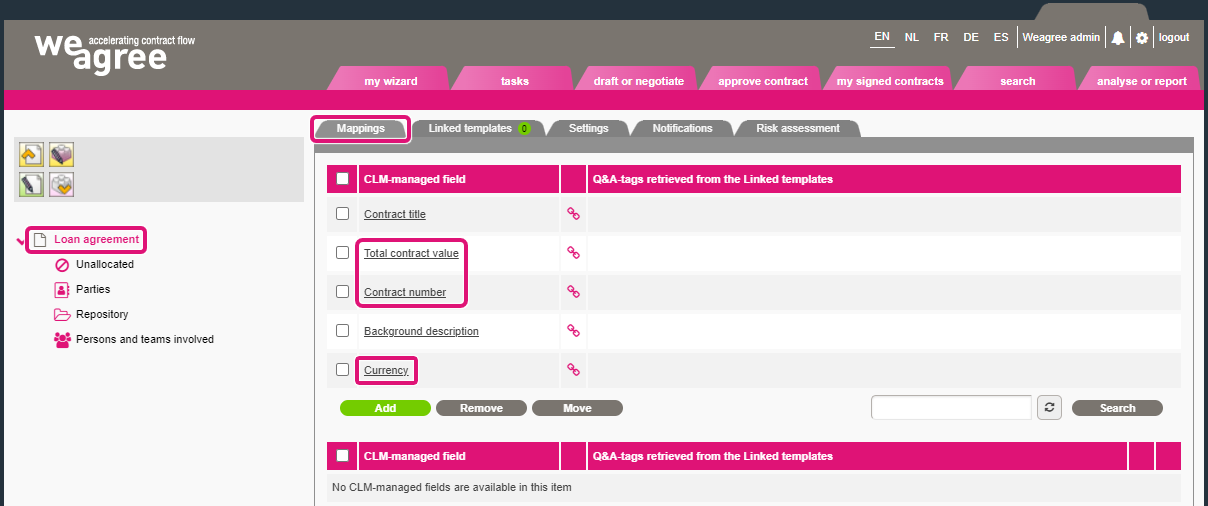
Open (or create) a contract sheet via the CLM (contract lifecycle management) item on the Administrator page, then navigate to the Settings subtab of the contract sheet creation tool.
1. Include the following fields
Tick or untick checkboxes to include or exclude default (i.e. hardcoded, rather than manually created) contract fields.
Note 1: some fields, such as Owner and User group, concern contract details that are always applicable (and in this case editable from the Persons and teams involved item on the managed contract page). This setting merely determines whether their details are visible on the contract’s overview page, not whether the contract can be assigned to anu particular user or user group(s).
Note 2: enabling the field Contract sheet will allow the end-user to switch a managed contract using this contract sheet to a different contract sheet. This may be useful in some cases, mainly if the wrong contract sheet was initially selected (which will typically only arise when importing an existing contract). No data will be lost when changing the contract sheet, so such a change can easily be reverted. However, if the Contract sheet field is not also enabled on the newly applied contract sheet, the user won’t be able to change it back. Some caution is therefore advised when enabling (or disabling) this setting.
2. Override default currency
Tick the checkbox to select a currency for this contract sheet other than the default. Be aware that this will principally apply to all contracts using this contract sheet, although end-users will be able to choose any currency on a contract-by-contract basis.
Note 1: the field Currency, and by extension the field Override default currency, is only available if the currency indicator has been enabled (see section A above).
3. Retention period
If the number inserted here is higher than 0, contracts using this contract sheet will be automatically deleted after the designated amount of time (the number is the retention period in years). This setting overrides the global settings as configured on the Administrator page under Data integrity and retention periods. The end-user will also be able to override this for individual contracts.
Note: if the retention period is set to 0.00, which is the default, the managed contract will be retained indefinitely unless a global retention period has been defined.
4. Years from
This dropdown contains the available date fields in the contract sheet. Any may be used for the retention period’s starting date.
Click Save after changing these settings.
C. CONTRACT OVERVIEW
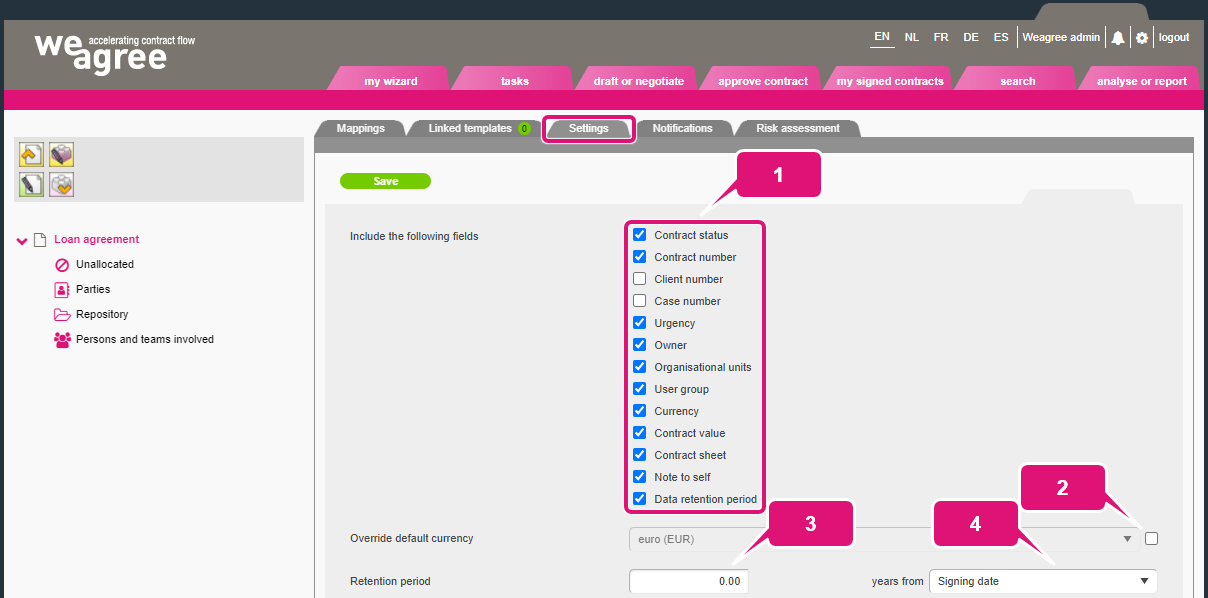
The ‘main’ page of a managed contract is the contract overview. In the contract sheet creation tool, you can inspect and edit the fields appearing on the contract overview from the sheet’s top-level item (i.e. its name, shown on the left side of the screen). You will find the contract fields on the Mappings subtab of that item. It is split into two tables, the top one containing the applicable default fields, the bottom one containing custom fields that have been added to the sheet. A few default fields will always be present, but others – such as Total contract value, Contract number and Currency, shown in the screenshot below – will only appear if enabled on the Settings subtab (as explained in section B above).
For more information on adding and editing contract fields, click here.